Tax
Types of taxes that applies to the products to be sold or pu
List Taxes
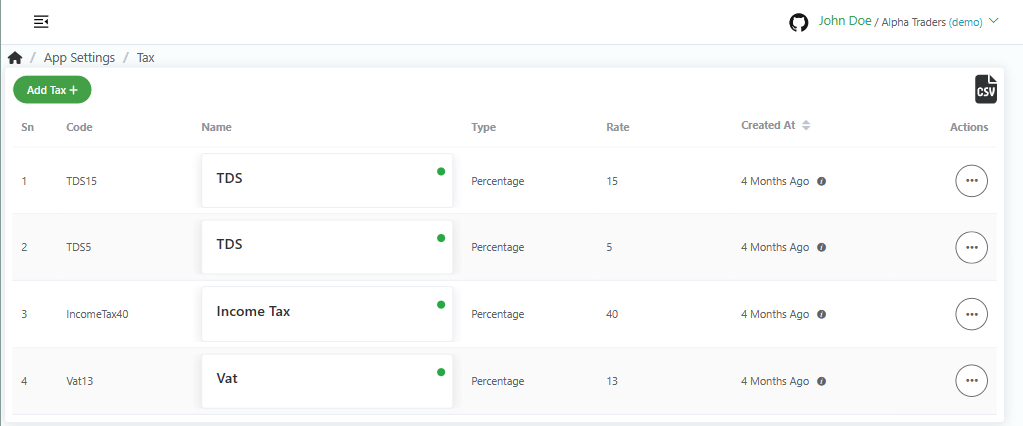
List all the taxes you have added.
Direct Link: https://app.meroerp.com/apps-settings/tax/taxes
- Log in to your MeroERP account.
- On the left navigation menu, browse to Settings > Taxes. This will redirect you to taxes list page.
Add Tax
Add different tax
Direct Link: https://app.meroerp.com/apps-settings/tax/taxes
- Log in to your MeroERP account.
- On the left navigation menu, browse to Settings > Taxes. This will redirect you to taxes list page.
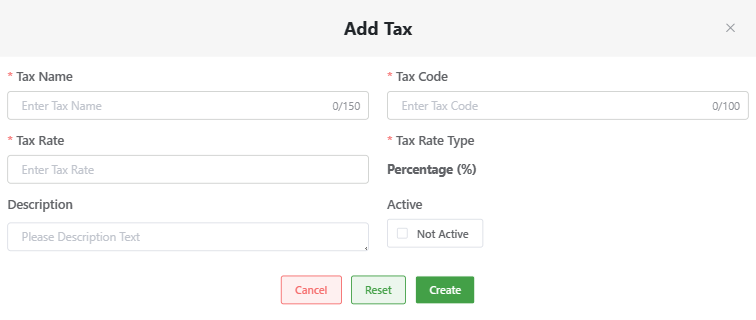
- Click on Add Tax+. Add Tax popup page will appear.
- Fill in the necessary details.
- *Tax Name
- *Tax Code
- *Tax Rate
- Description
- Active checkbox: Check the checkbox if this is active.
- Click on Create.
Update Tax
Update existing tax types
Direct Link: https://app.meroerp.com/apps-settings/tax/taxes
- Log in to your MeroERP account.
- On the left navigation menu, browse to Settings > Taxes. This will redirect you to taxes list page.
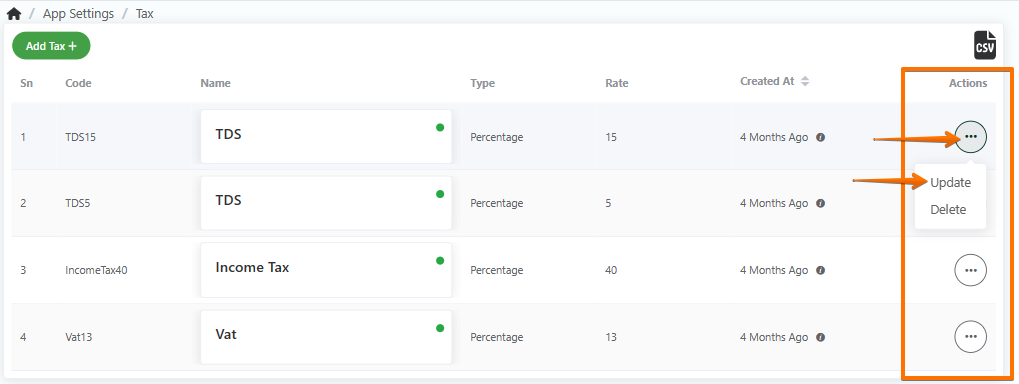
- Find the tax you would like to edit. Click on that tax's Action panel then select on Update.
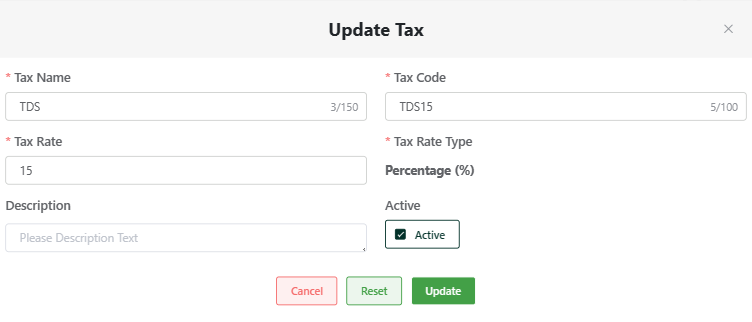
- Update the necessary details.
- Click on Update.
Delete Tax
Delete existing tax
Direct Link: https://app.meroerp.com/apps-settings/tax/taxes
- Log in to your MeroERP account.
- On the left navigation menu, browse to Settings > Taxes. This will redirect you to taxes list page.
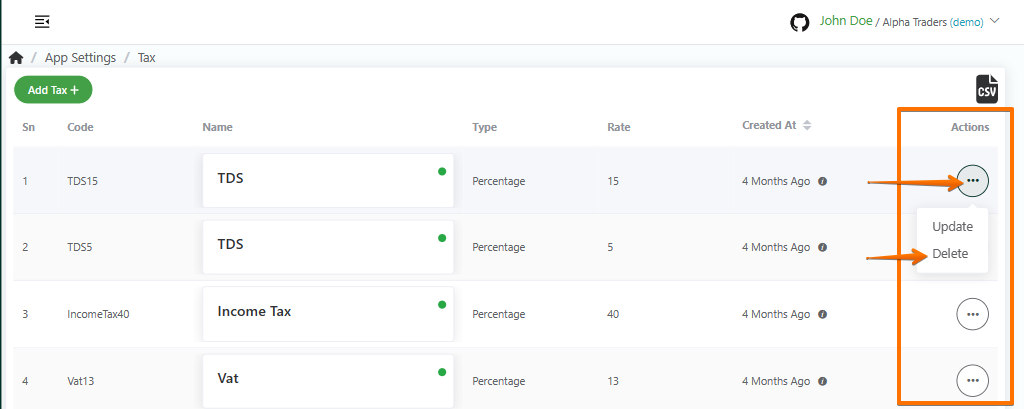
- Find the tax you would like to delete. Click on that tax's Action panel then select on Delete.
- Click on Ok.