Report
List of reports shown on cards
Direct Link: https://app.meroerp.com/reports
Sales Report
Sales by Customer
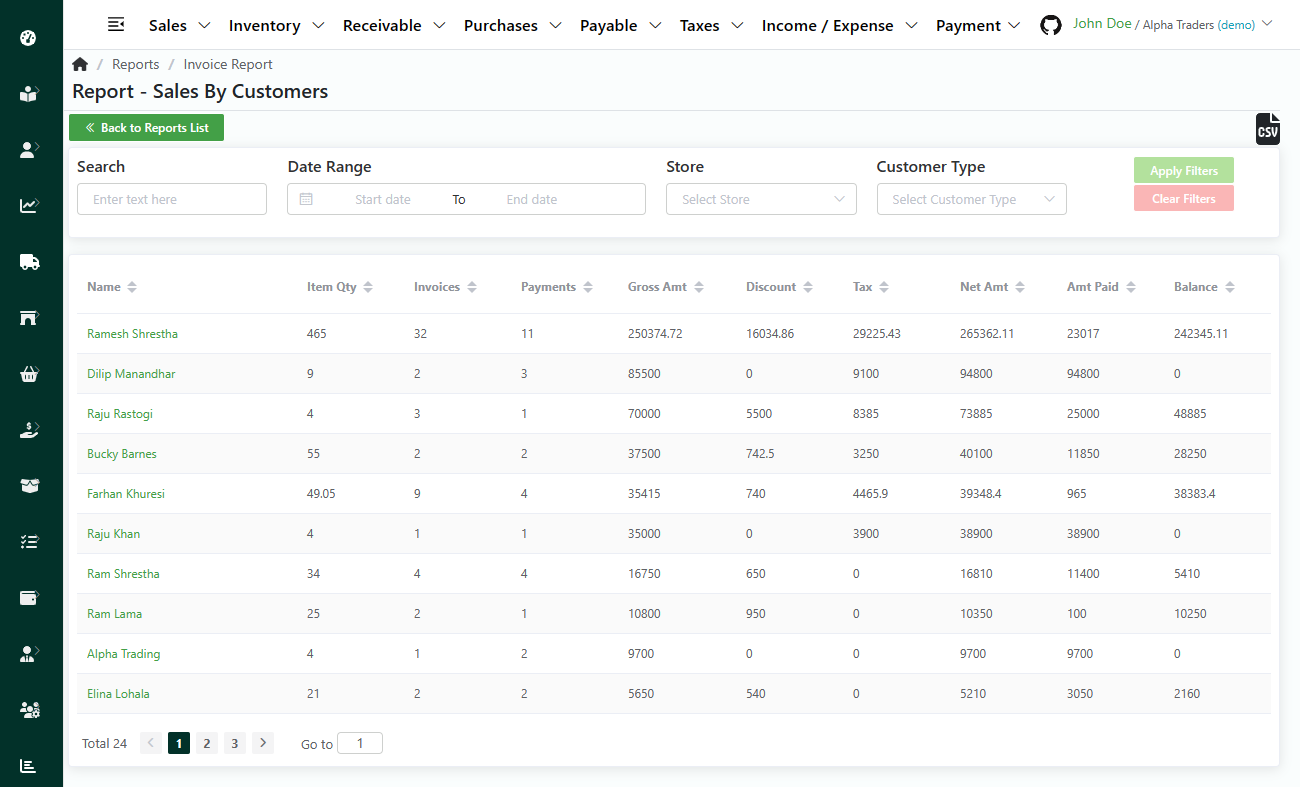
List Sales by Customer
Direct Link: https://app.meroerp.com/reports/sales-by-customer
- Log in to your MeroERP account.
- On the left navigation menu, browse to Reports. This will redirect you to Reports list page.
- In the Sales panel, select Sales by Customer. This will redirect you to Invoice Sales by Customer list page.
- The page have the following informations of each customer.
- Name
- Total Quantity
- Total Invoice Count
- Total Payment Transactions
- Gross Amount
- Discount Amount
- Tax Amount
- Net Amount
- Amount Paid
- Amount Due
Search in Sales by Customer
Direct Link: https://app.meroerp.com/reports/sales-by-customer
- Log in to your MeroERP account.
- On the left navigation menu, browse to Reports. This will redirect you to Reports list page.
- In the Sales panel, select Sales by Customer. This will redirect you to Invoice Sales by Customer list page.
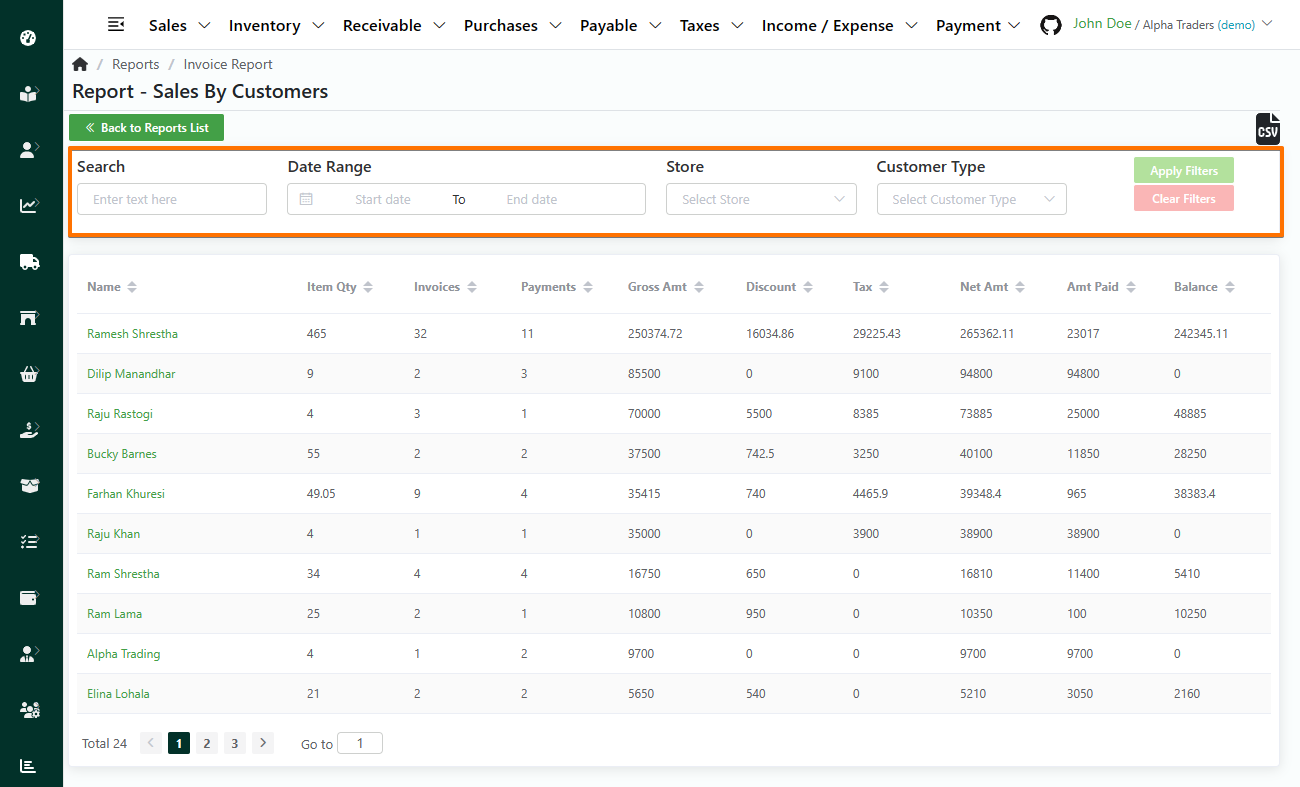
- Apply the required filters. The filters available are
- Customer Name
- Date Range
- Store
- Customer Type
- Normal
- Regular
- Click on Apply filters.
Note: You can click on Customer to view all the invoices related to the filters appplied.
Sales by Item
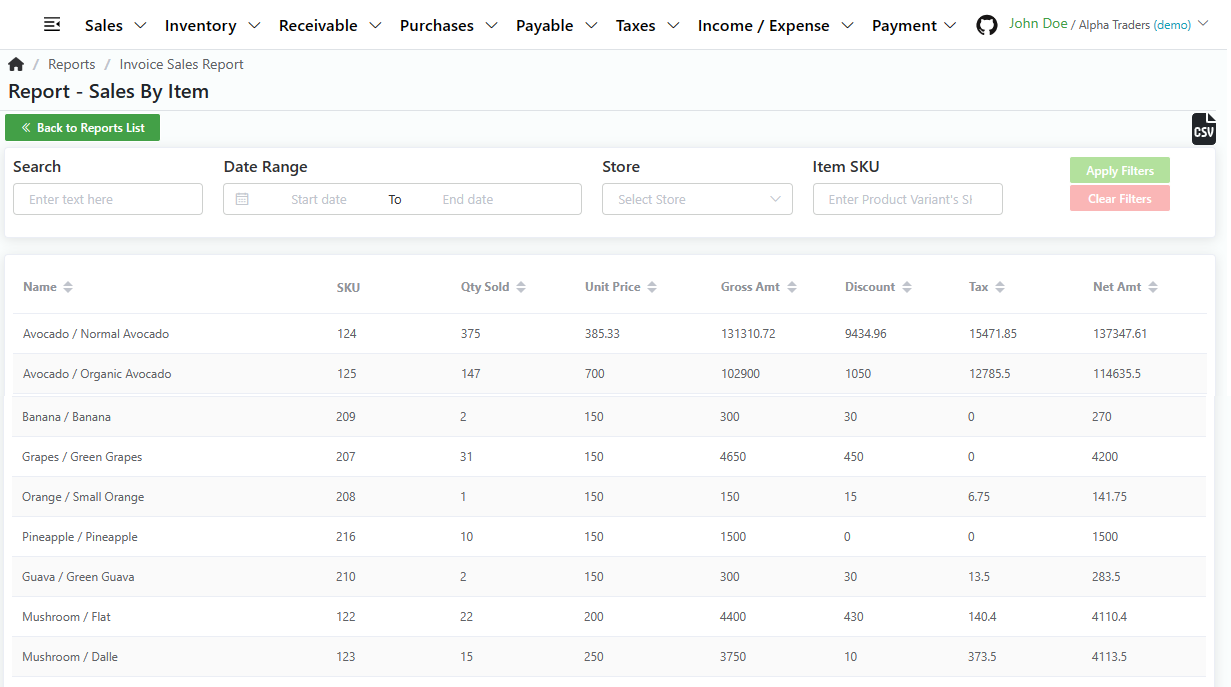
List Sales by Item
Direct Link: https://app.meroerp.com/reports/sales-by-item
- Log in to your MeroERP account.
- On the left navigation menu, browse to Reports. This will redirect you to Reports list page.
- In the Sales panel, select Sales by Item. This will redirect you to Sales by Prodcut Variant list page.
- The page have the following informations.
- Name
- SKU
- Quantity Sold
- Unit Price
- Gross Amount
- Discount Amount
- Tax Amount
- Net Amount
- Created at
Search in Sales by Item
Direct Link: https://app.meroerp.com/reports/sales-by-item
- Log in to your MeroERP account.
- On the left navigation menu, browse to Reports. This will redirect you to Reports list page.
- In the Sales panel, select Sales by Item. This will redirect you to Sales by Prodcut Variant list page.
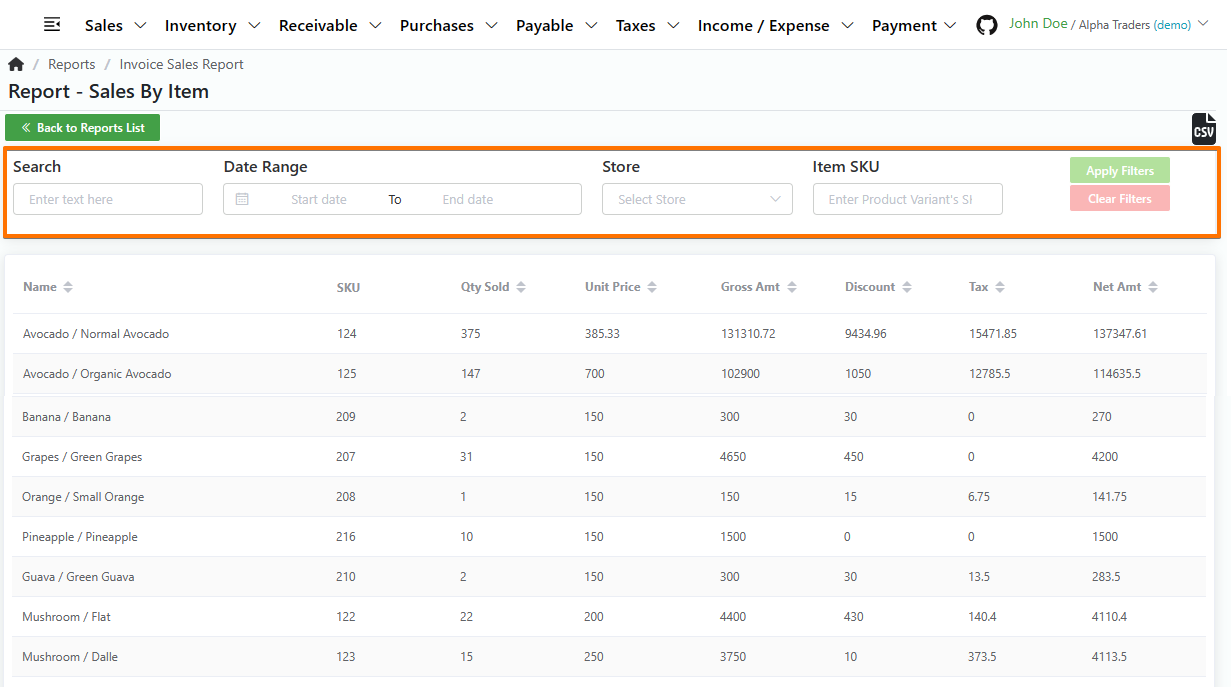
- Apply the required filters. The filters available are
- Name
- Date Range
- Store
- SKU ID
- Click on Apply filters.
Sales by Employee
List Sales by Employee
Direct Link: https://app.meroerp.com/reports/sales-by-employee
Log in to your MeroERP account.
On the left navigation menu, browse to Reports. This will redirect you to Reports list page.
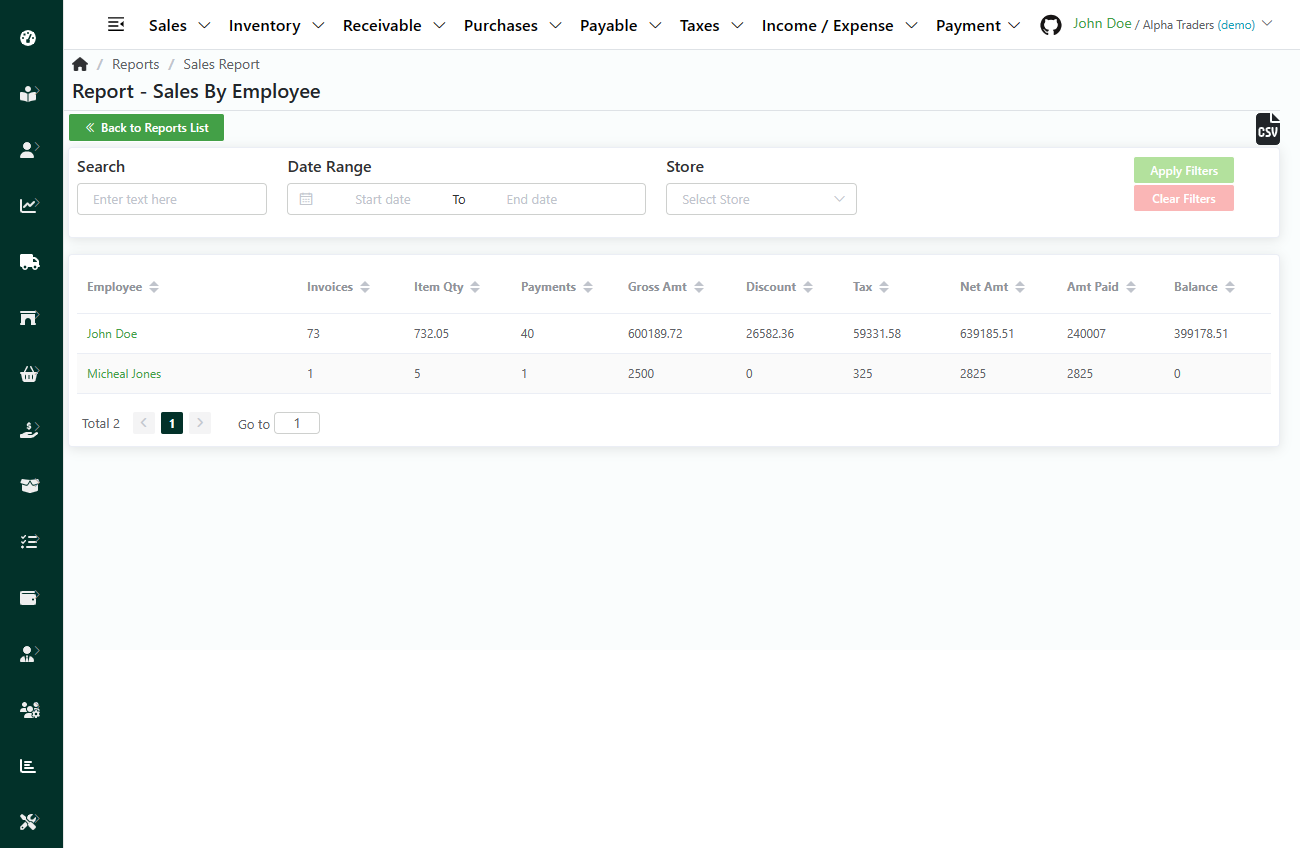
In the Sales panel, select Sales by Employee. This will redirect you to Invoice Sales by Employee list page.
The page have the following informations.
- Employee Name
- Total Invoice
- Total Item Quantity
- Total Payment Transactions
- Gross Amount
- Discount Amount
- Tax Amount
- Net Amount
- Amount Paid
- Amount Due
Search Sales by Employee
Direct Link: https://app.meroerp.com/reports/sales-by-employee
- Log in to your MeroERP account.
- On the left navigation menu, browse to Reports. This will redirect you to Reports list page.
- In the Sales panel, select Sales by Employee. This will redirect you to Invoice Sales by Employee list page.
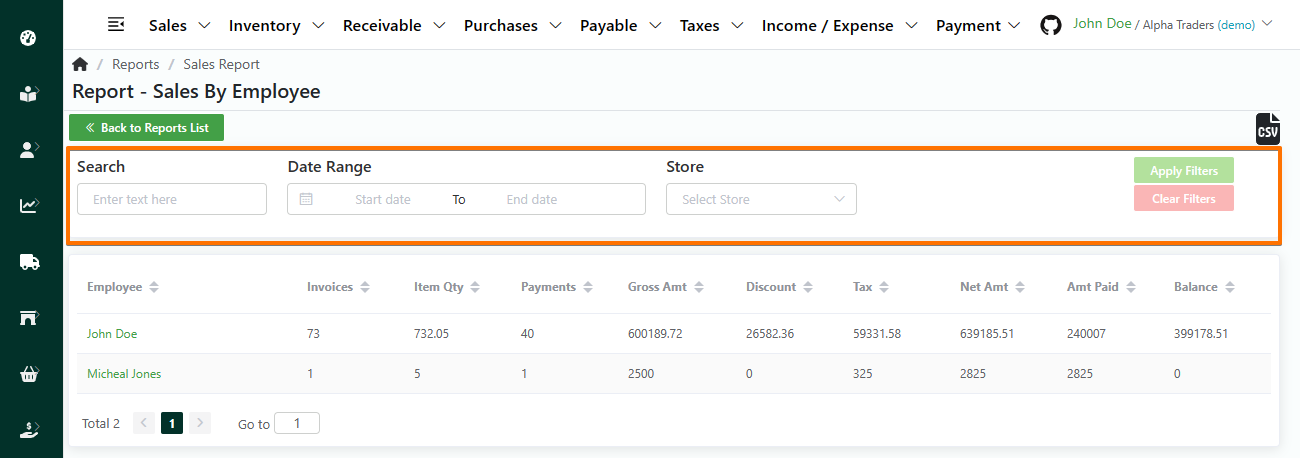
- Apply the required filters. The filters available are
- Name
- Date Range
- Store
- Click on Apply filters.
Sales by Channel
List Sales by Channel
Direct Link: https://app.meroerp.com/reports/sales-by-channel
Log in to your MeroERP account.
On the left navigation menu, browse to Reports. This will redirect you to Reports list page.
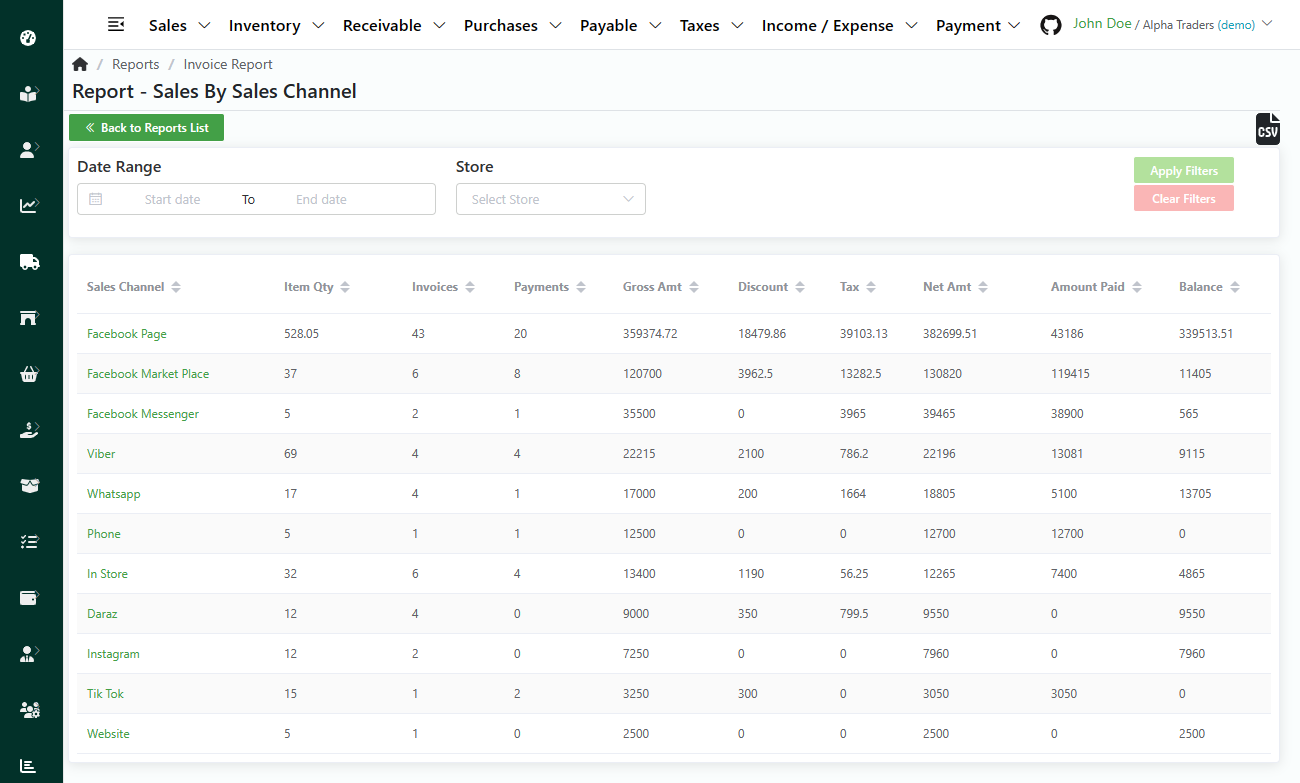
In the Sales panel, select Sales by Channel. This will redirect you to Invoice Sales by Channel list page.
The page have the following informations.
- Sales Channel Name
- Total Item Quantity
- Total Invoice Count
- Total Payment Transactions
- Gross Amount
- Discount Amount
- Tax Amount
- Net Amount
- Amount Paid
- Amount Due
Search Sales by Channel
Direct Link: https://app.meroerp.com/reports/sales-by-channel
- Log in to your MeroERP account.
- On the left navigation menu, browse to Reports. This will redirect you to Reports list page.
- In the Sales panel, select Sales by Channel. This will redirect you to Invoice Sales by Channel list page.
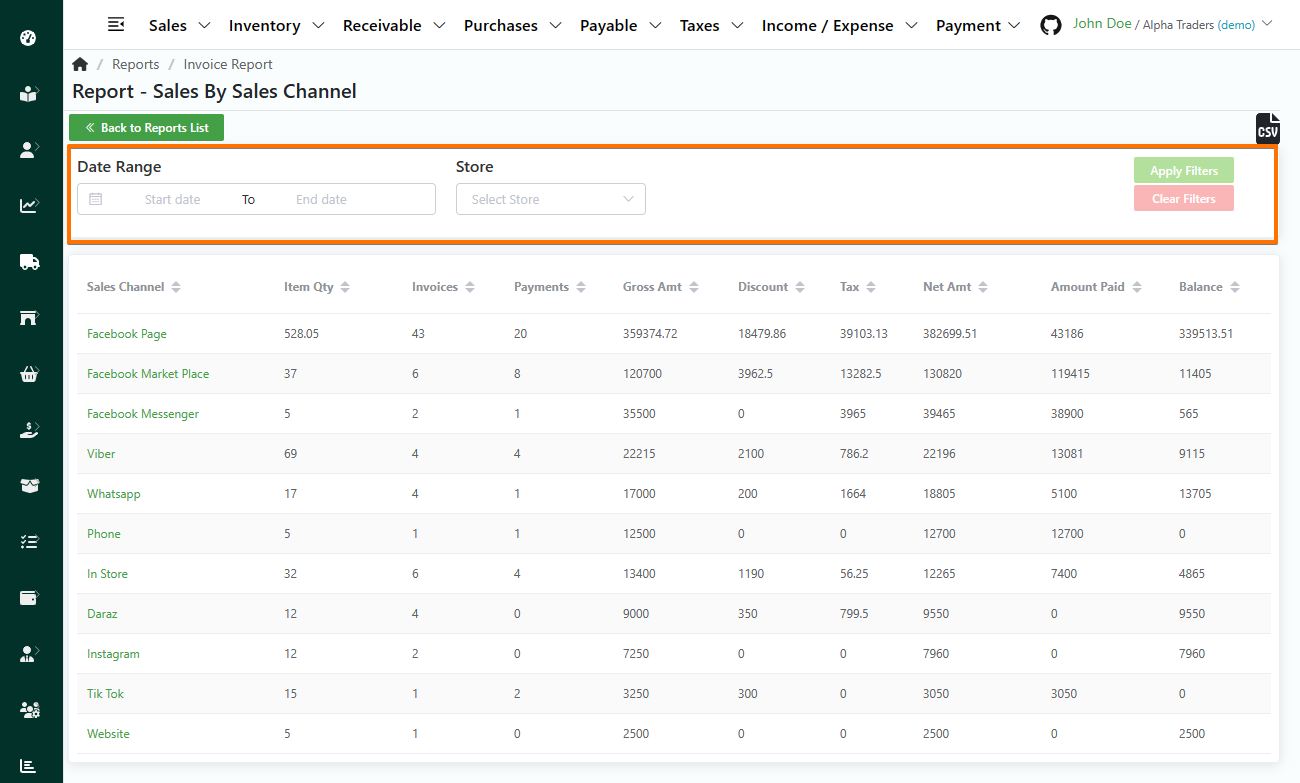
- Apply the required filters. The filters available are
- Date Range
- Store
- Click on Apply filters.
View Summary / Sales Dashboard
Direct Link: https://app.meroerp.com/sales/dashboard
Log in to your MeroERP account.
On the left navigation menu, browse to Reports. This will redirect you to Reports list page.
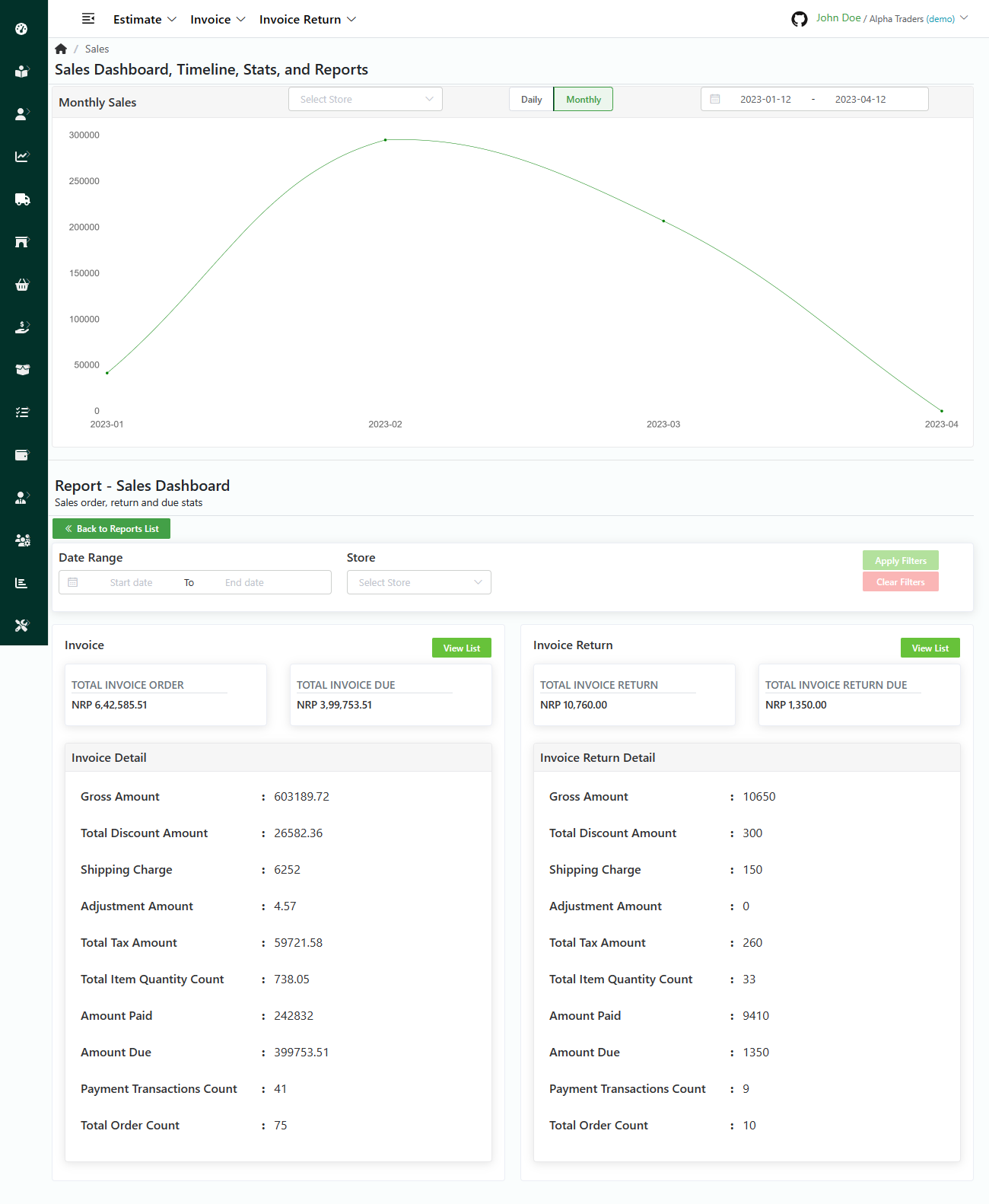
In the Sales panel, select View Summary. This will redirect you to Sales Dashboard page.
The page have the following details:
Invoice Orders time series data: Line Graph
- Store
- Daily / Monthly
- Manual dates selection
Sales Dashboard
Search based on
- Date Range
- Store
Invoice
- Total Invoice Order
- Total Invoice Due
- Invoice Detail
- Gross Amount
- Total Discount Amount
- Shipping Charge
- Adjustment Amount
- Total Tax Amount
- Total Item Quantity Count
- Amount Paid
- Amount Due
- Payment Transactions Count
- Total Order Count
Invoice Return Detail
- Total Invoice Return
- Total Invoice Return Due
- Gross Amount
- Total Discount Amount
- Shipping Charge
- Adjustment Amount
- Total Tax Amount
- Total Item Quantity Count
- Amount Paid
- Amount Due
- Payment Transactions Count
- Total Order Count
Purchases Report
Purchase by Vendor
List Purchase by Vendor
Direct Link: https://app.meroerp.com/reports/purchase/purchases-by-vendor
Log in to your MeroERP account.
On the left navigation menu, browse to Reports. This will redirect you to Reports list page.
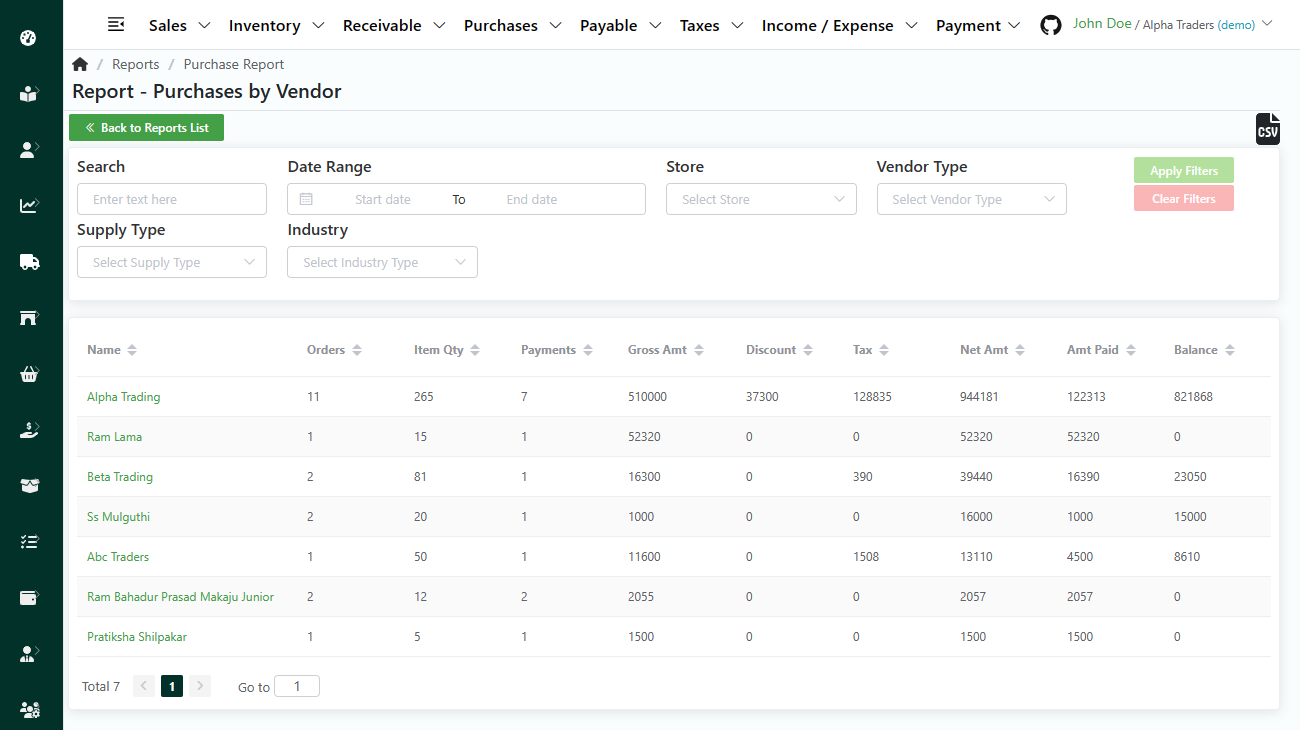
In the Purchases panel, select Purchase by Vendor. This will redirect you to Purchases report by vendor list page.
The page have the following informations.
- Vendor Name
- Total Orders
- Item Quantity
- Payment Transactions
- Gross Amount
- Discount Amount
- Tax Amount
- Net Amount
- Amount Paid
- Amount Due
Search Purchase by Vendor
Direct Link: https://app.meroerp.com/reports/purchase/purchases-by-vendor
- Log in to your MeroERP account.
- On the left navigation menu, browse to Reports. This will redirect you to Reports list page.
- In the Purchases panel, select Purchase by Vendor. This will redirect you to Purchases Report by Vendor list page.
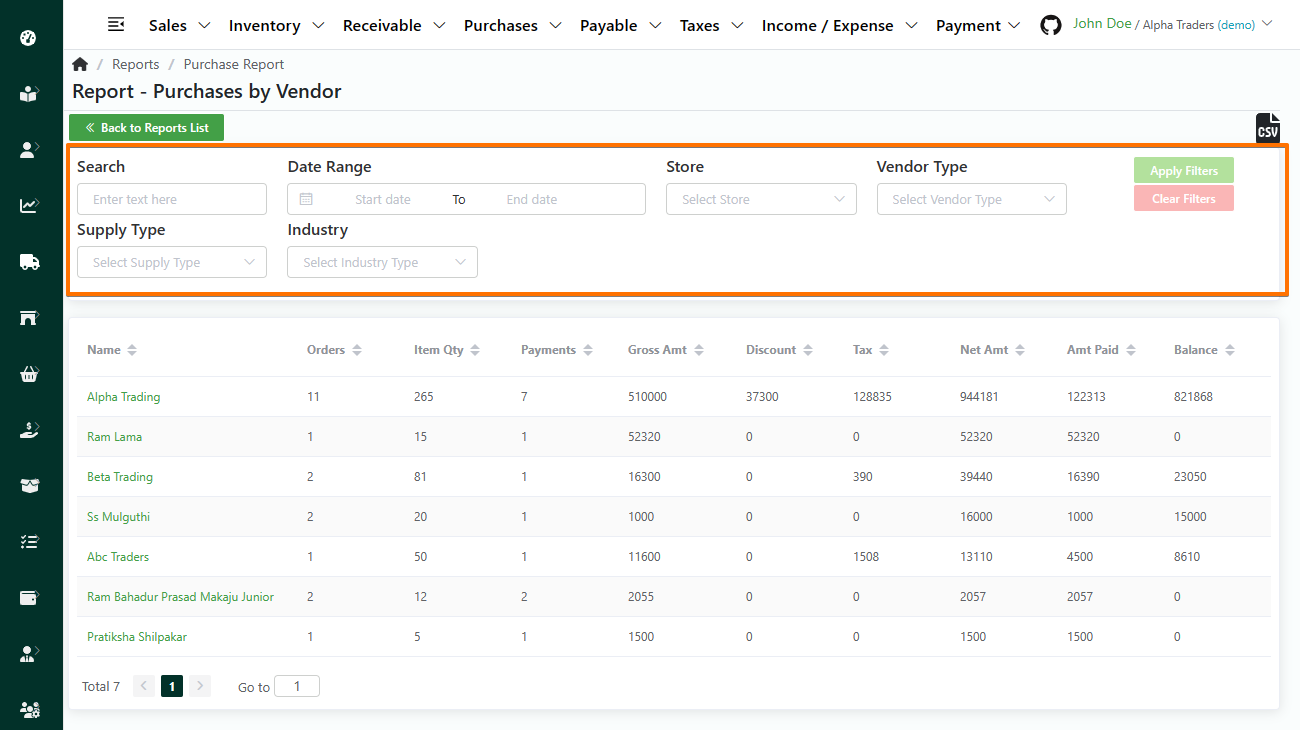
- Apply the required filters. The filters available are
- Vendor Name
- Date Range
- Store
- Vendor Type
- Supply Type
- Industry
- Click on Apply filters.
Purchase by Item
List Purchase by Item
Direct Link: https://app.meroerp.com/reports/purchase/purchases-by-item
Log in to your MeroERP account.
On the left navigation menu, browse to Reports. This will redirect you to Reports list page.
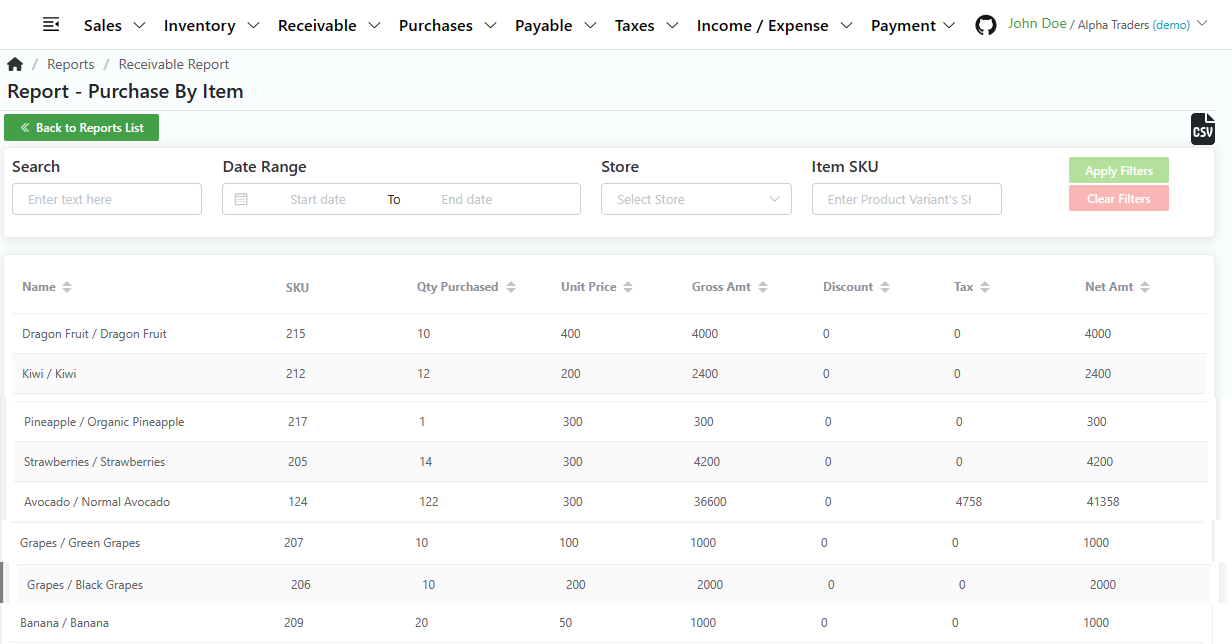
In the Purchases panel, select Purchase by Item. This will redirect you to Purchase by Product Variant list page.
The page have the following informations.
- Vendor Name
- SKU
- Quantity Purchased
- Unit Price
- Gross Amount
- Discount Amount
- Tax Amount
- Net Amount
- Created At
Search
Direct Link: https://app.meroerp.com/reports/purchase/purchases-by-item
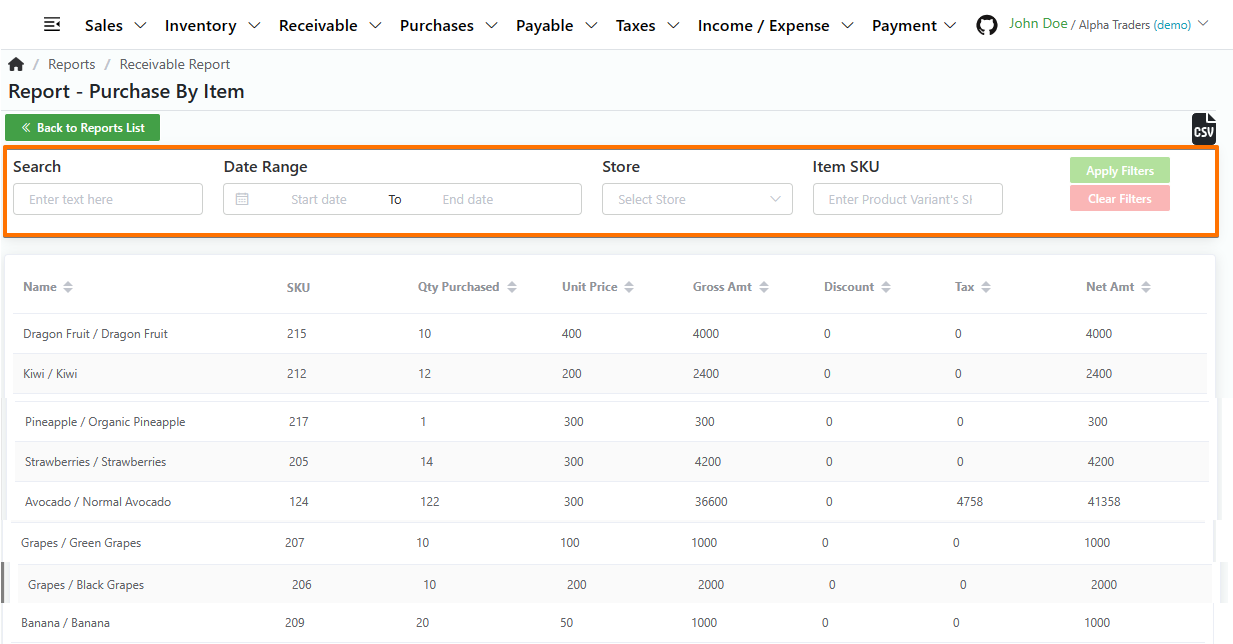
- Log in to your MeroERP account.
- On the left navigation menu, browse to Reports. This will redirect you to Reports list page.
- In the Purchases panel, select Purchase by Item. This will redirect you to Purchase by Product Variant list page.
- Apply the required filters. The filters available are
- Name
- Date Range
- Store
- Item SKU
- Click on Apply filters.
Purchase by Employee
List Purchase by Employee
Direct Link: https://app.meroerp.com/reports/purchase/purchase-by-employee
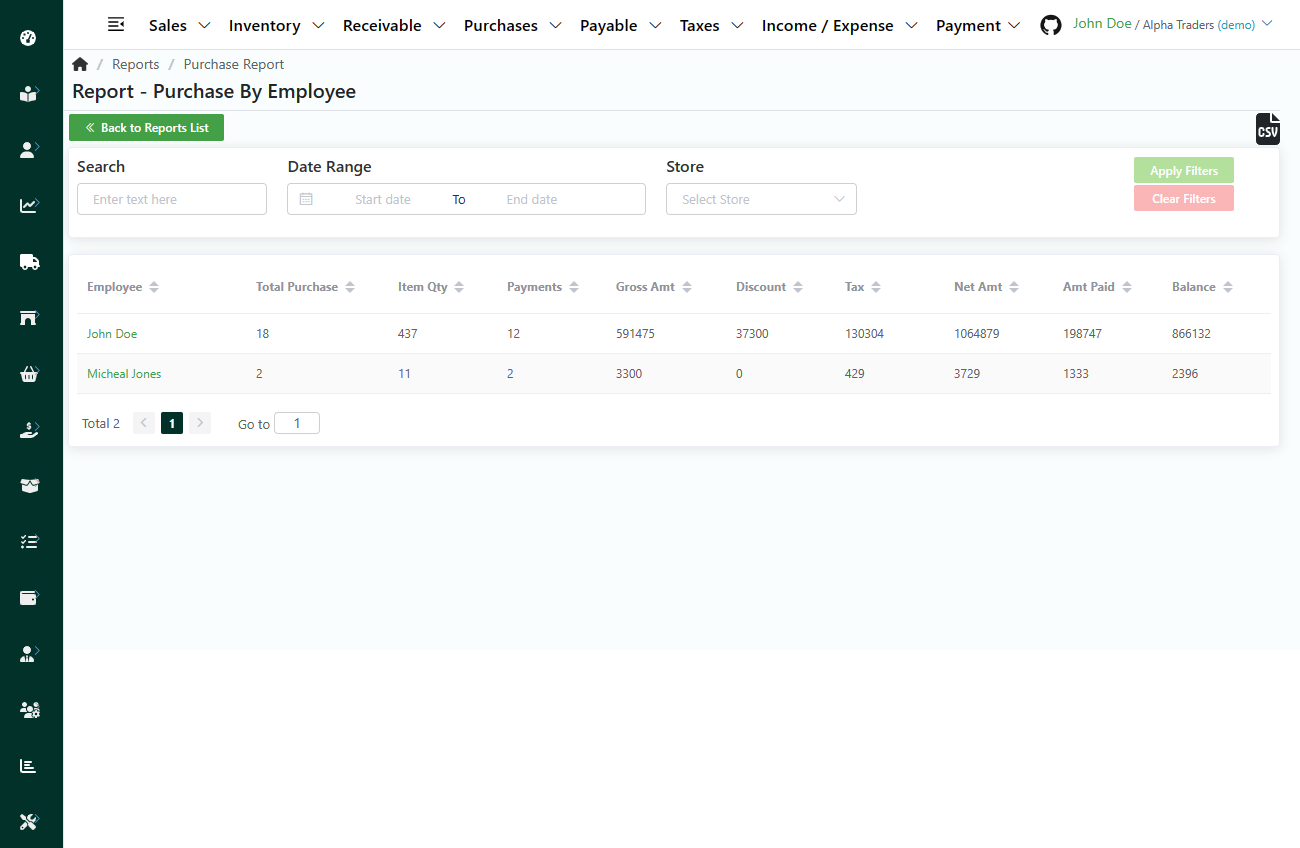
Log in to your MeroERP account.
On the left navigation menu, browse to Report. This will redirect you to Reports list page.
In the Purchases panel, select Purchase by Employee. This will redirect you to Purchases Report by Employee list page.
The page have the following informations.
- Employee Name
- Total Purchases
- Total Item Quantity
- Total Payment Transactions
- Gross Amount
- Discount Amount
- Tax Amount
- Net Amount
- Amount Paid
- Amount Due
Search Purchase by Employee
Direct Link: https://app.meroerp.com/reports/purchase/purchase-by-employee
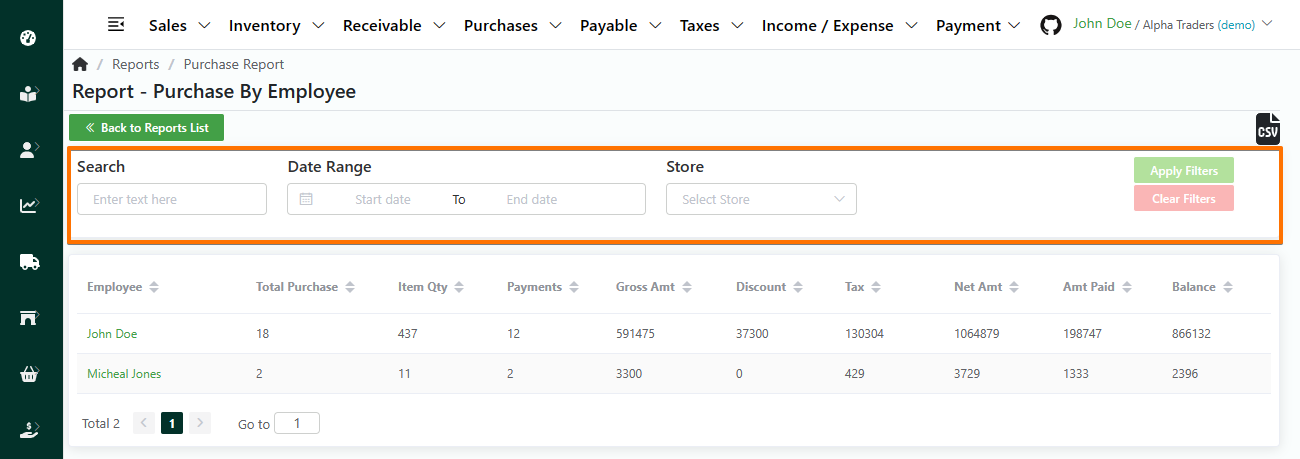
- Log in to your MeroERP account.
- On the left navigation menu, browse to Reports. This will redirect you to Reports list page.
- In the Purchases panel, select Purchase by Employee. This will redirect you to Purchase Report by Employee list page.
- Apply the required filters. The filters available are
- Name
- Date Range
- Store
- Click on Apply filters.
View Summary / Purchase Dashboard
Direct Link: https://app.meroerp.com/purchase/dashboard
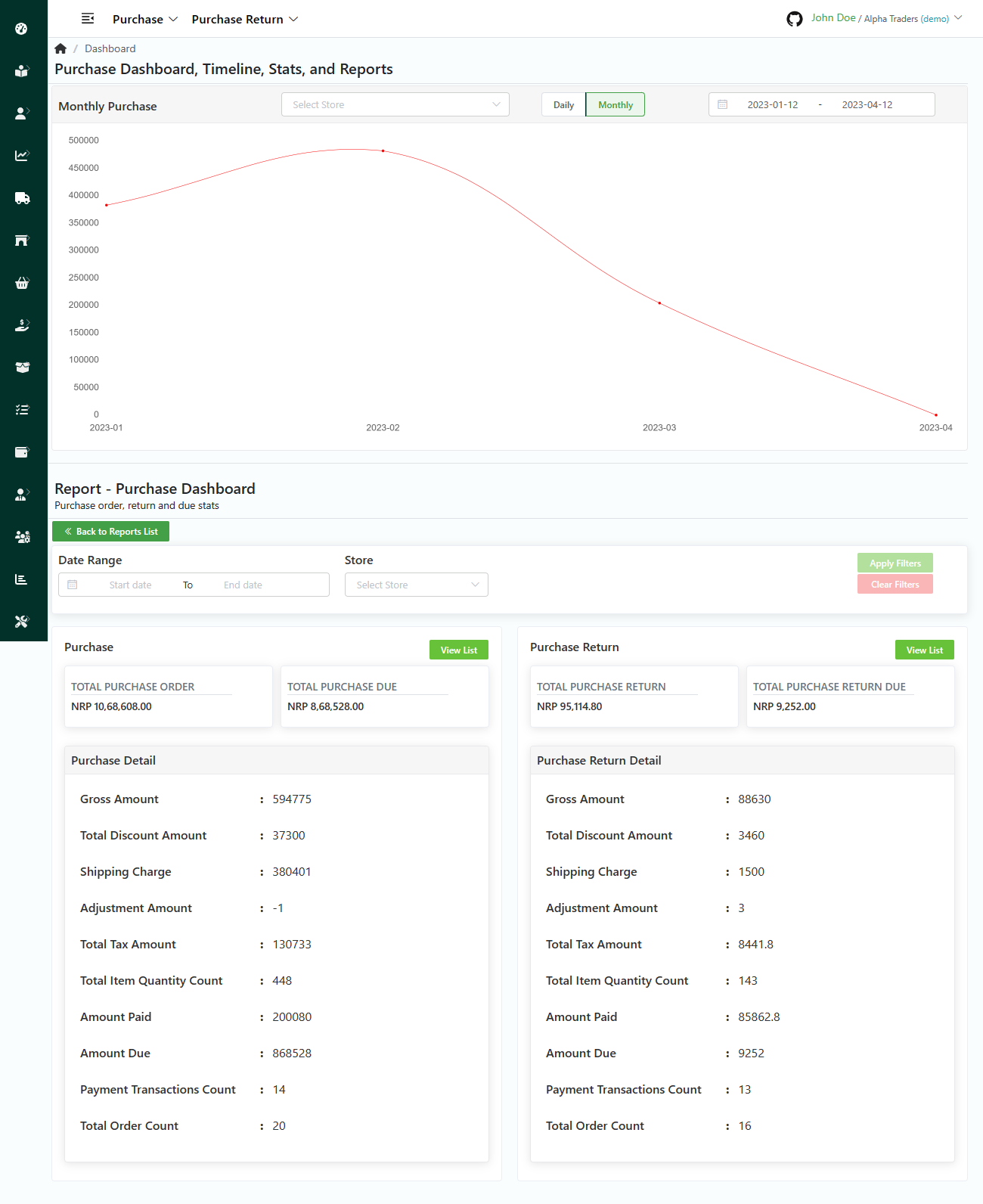
Log in to your MeroERP account.
On the left navigation menu, browse to Reports. This will redirect you to Reports list page.
In the Purchases panel, select View Summary. This will redirect you to Purchase Dashboard page.
The page have the following details:
Purchase orders time series data: Line Graph
- Store
- Daily / Monthly
- Manual dates selection
Stats
Search based on
- Date Range
- Store
Purchase
- Total Purchase Order
- Total Purchase Due
- Purchase Detail
- Gross Amount
- Total Discount Amount
- Shipping Charge
- Adjustment Amount
- Total Tax Amount
- Total Item Quantity Count
- Amount Paid
- Amount Due
- Payment Transactions Count
- Total Order Count
Purchase Return
- Total Purchase Return
- Total Purchase Return Due
- Purchase Return Detail
- Gross Amount
- Total Discount Amount
- Shipping Charge
- Adjustment Amount
- Total Tax Amount
- Total Item Quantity Count
- Amount Paid
- Amount Due
- Payment Transactions Count
- Total Order Count
- Purchase Return Detail
Payment Report
Invoice Order Payment
List Invoice Order Payment
Direct Link: https://app.meroerp.com/reports/sales-invoice-payment
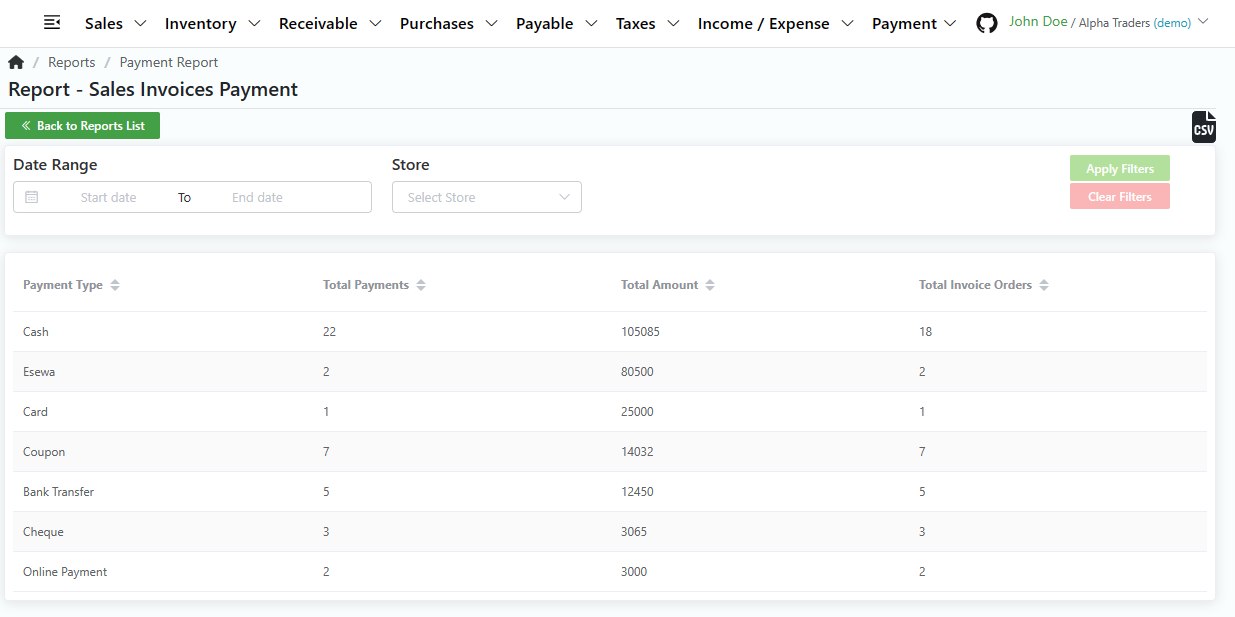
- Log in to your MeroERP account.
- On the left navigation menu, browse to Reports. This will redirect you to Reports list page.
- In the Payments panel, select Invoice Order Payments. This will redirect you to Sales Invoices Payment Report list page.
- The page have the following informations of each payment type:
- Payment Type
- Total Payments
- Total Amount
- Total Invoice Orders
Search Invoice Order Payment
Direct Link: https://app.meroerp.com/reports/sales-invoice-payment
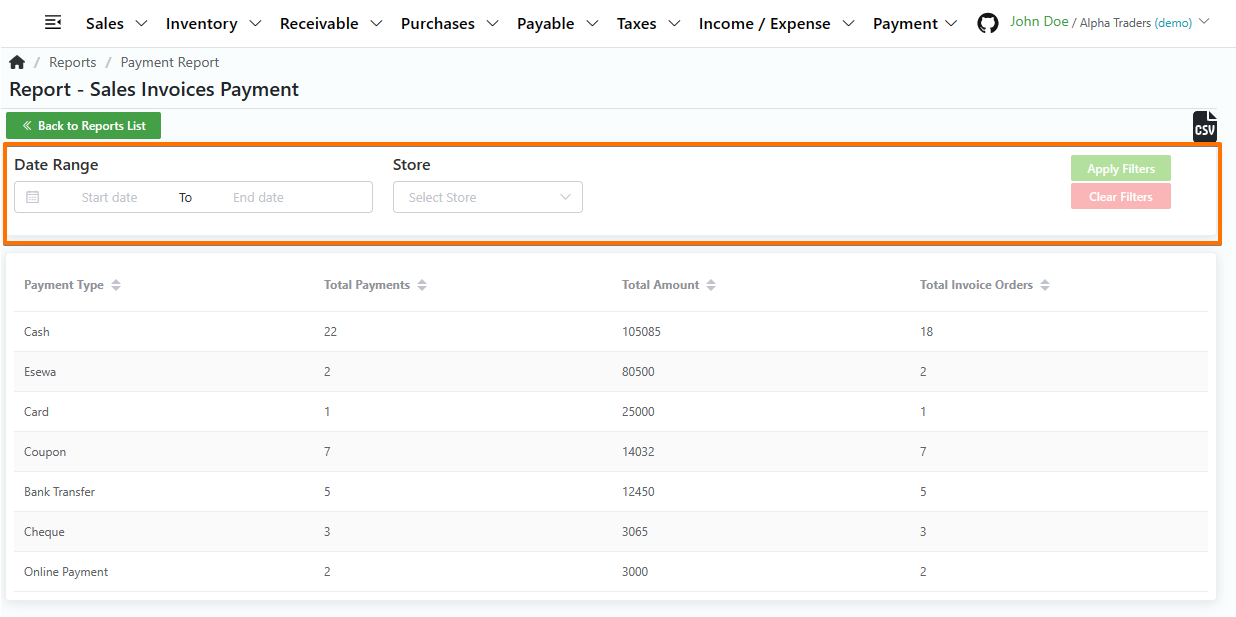
- Log in to your MeroERP account.
- On the left navigation menu, browse to Reports. This will redirect you to Reports list page.
- In the Purchases panel, select Invoice Order Payments. This will redirect you to Sales Invoices Payment Report list page.
- Apply the required filters. The filters available are
- Date Range
- Store
- Click on Apply filters.
Invoice Return Order Payment
List Invoice Return Order Payment
Direct Link: https://app.meroerp.com/reports/invoice-return-payment
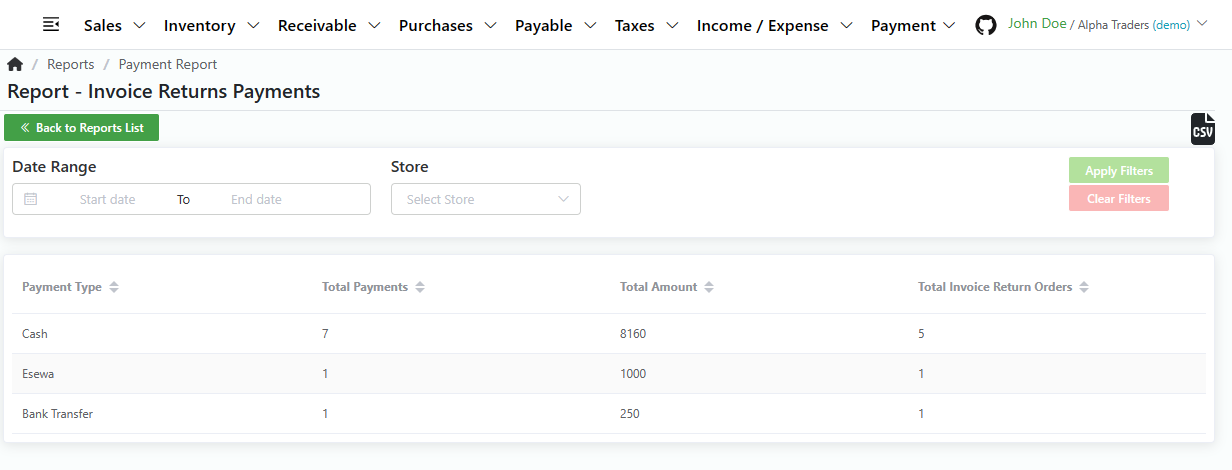
- Log in to your MeroERP account.
- On the left navigation menu, browse to Reports. This will redirect you to Reports list page.
- In the Payments panel, select Invoice Return Order Payments. This will redirect you to Invoice Return Payment Report list page.
- The page have the following informations of each payment type:
- Payment Type
- Total Payments
- Total Amount
- Total Invoice Return Orders
Search Invoice Return Order Payment
Direct Link: https://app.meroerp.com/reports/invoice-return-payment
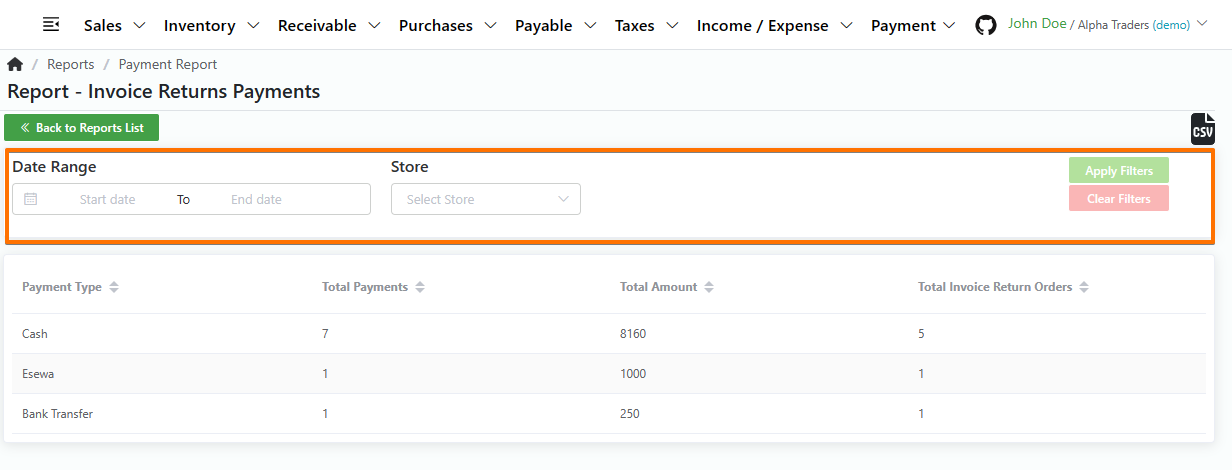
- Log in to your MeroERP account.
- On the left navigation menu, browse to Reports. This will redirect you to Reports list page.
- In the Payments panel, select Invoice Return Order Payments. This will redirect you to Invoice Return Payment Report list page.
- Apply the required filters. The filters available are
- Date Range
- Store
- Click on Apply filters.
Purchase Order Payment
List Purchase Order Payment
Direct Link: https://app.meroerp.com/reports/purchase-order-payment
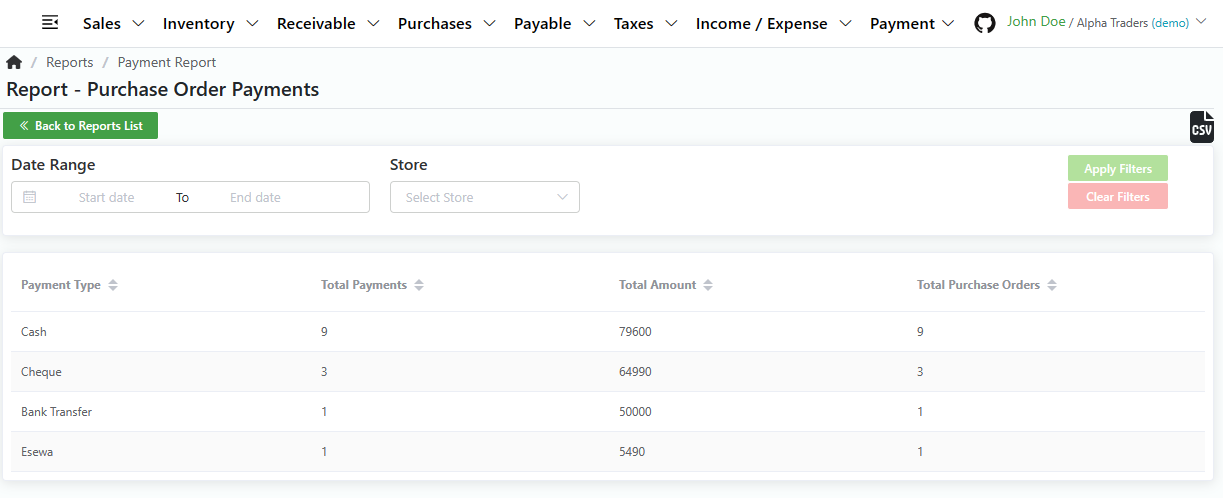
- Log in to your MeroERP account.
- On the left navigation menu, browse to Reports. This will redirect you to Reports list page.
- In the Payments panel, select Purchase Order Payments. This will redirect you to Purchase Order Payment Report list page.
- The page have the following informations of each payment type:
- Payment Type
- Total Payments
- Total Amount
- Total Purchase Orders
Search Purchase Order Payment
Direct Link: https://app.meroerp.com/reports/purchase-order-payment
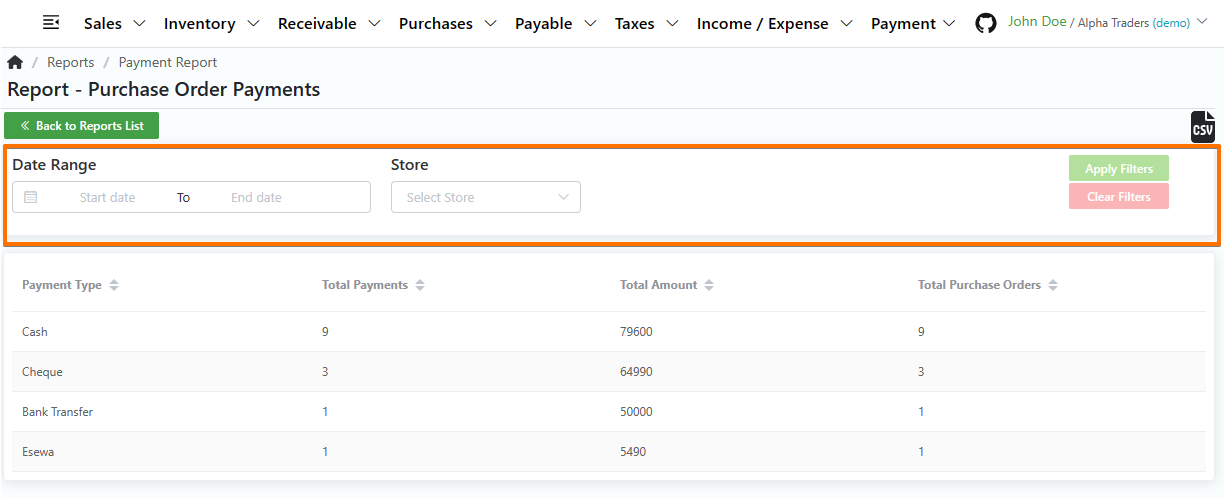
- Log in to your MeroERP account.
- On the left navigation menu, browse to Reports. This will redirect you to Reports list page.
- In the Payments panel, select Purchase Order Payments. This will redirect you to Purchase Order Payment Report list page.
- Apply the required filters. The filters available are
- Date Range
- Store
- Click on Apply filters.
Purchase Return Order Payment
List Purchase Return Order Payment
Direct Link: https://app.meroerp.com/reports/purchase-returns-payment
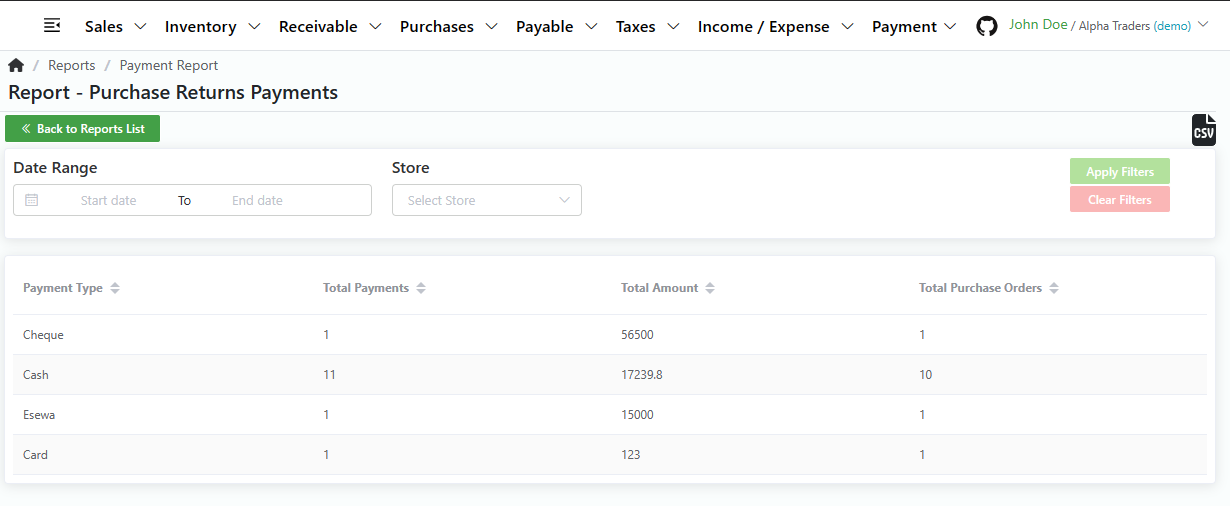
- Log in to your MeroERP account.
- On the left navigation menu, browse to Reports. This will redirect you to Reports list page.
- In the Payments panel, select Purchase Return Order Payments. This will redirect you to Purchase Return Payment Report list page.
- The page have the following informations of each payment type:
- Payment Type
- Total Payments
- Total Amount
- Total Purchase Return Orders
Search Purchase Return Order Payment
Direct Link: https://app.meroerp.com/reports/purchase-returns-payment
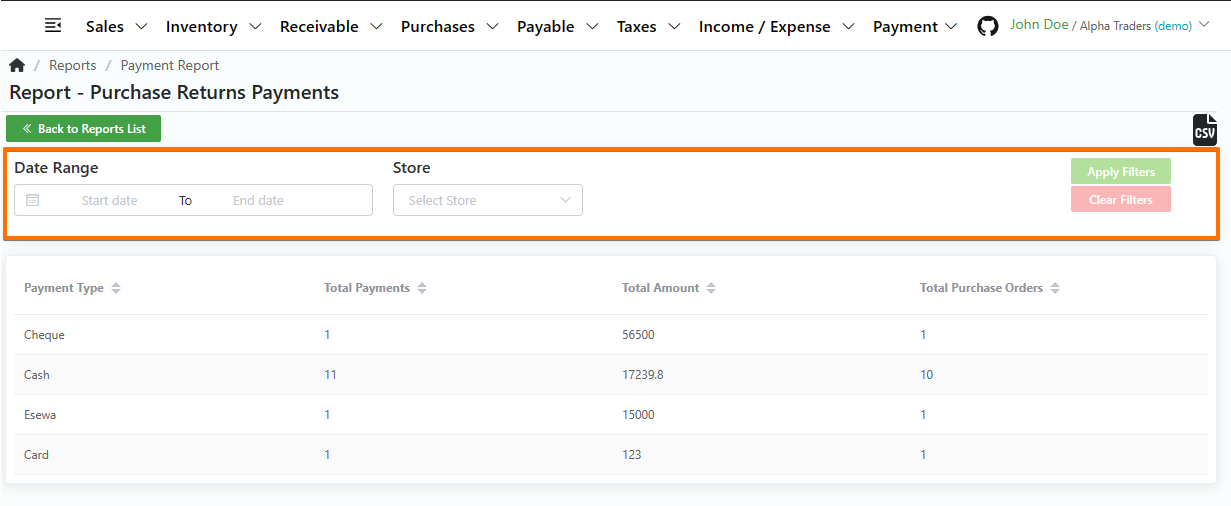
- Log in to your MeroERP account.
- On the left navigation menu, browse to Reports. This will redirect you to Reports list page.
- In the Payments panel, select Purchase Return Order Payments. This will redirect you to Purchase Return Payment Report list page.
- Apply the required filters. The filters available are
- Date Range
- Store
- Click on Apply filters.
Inventory Report
Stock Alert
List Stock Alert
Direct Link: https://app.meroerp.com/reports/inventory-stock-alert
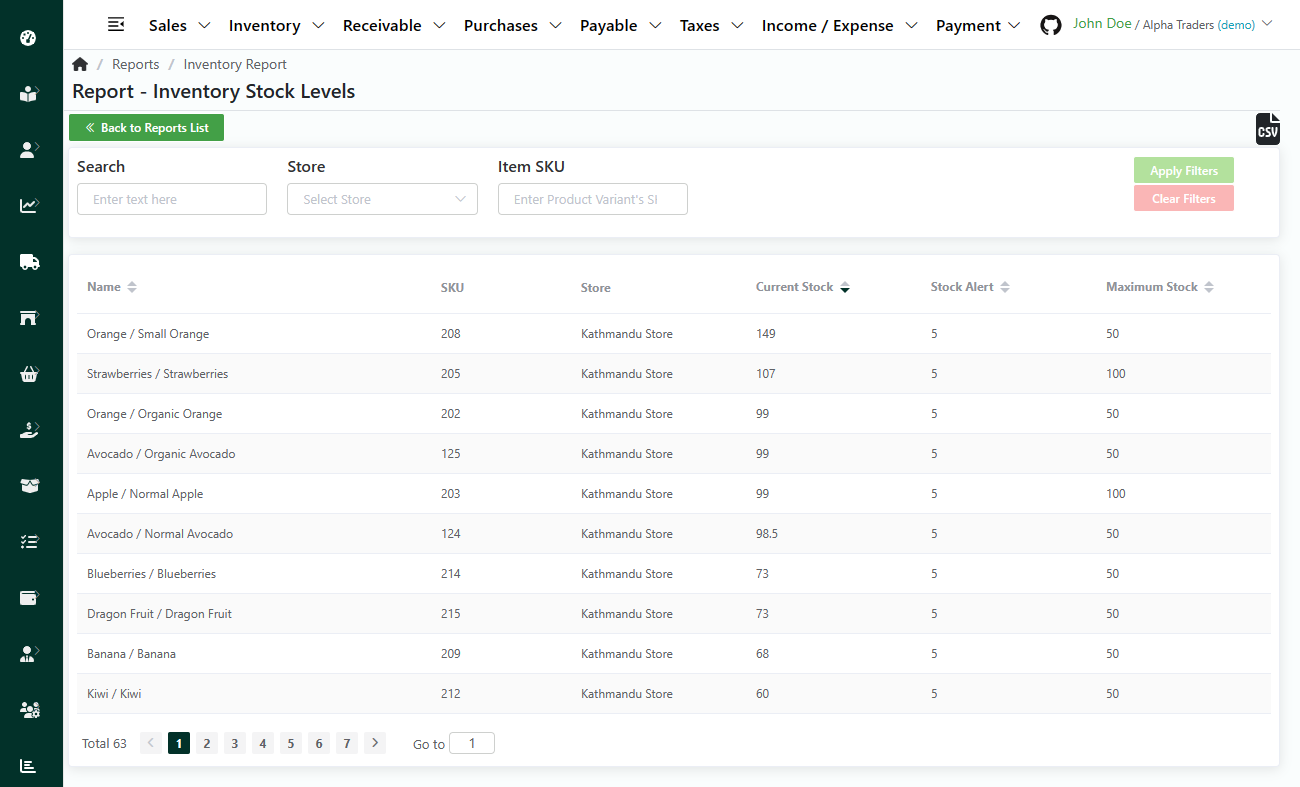
- Log in to your MeroERP account.
- On the left navigation menu, browse to Reports. This will redirect you to Reports list page.
- In the Inventory panel, select Stock Alert. This will redirect you to Inventory Stock list page.
- The page have the following informations:
- Name
- SKU
- Store
- Current Stock
- Stock Alert
- Maximum Stock
- Created At
Search Stock Alert
Direct Link: https://app.meroerp.com/reports/inventory-stock-alert
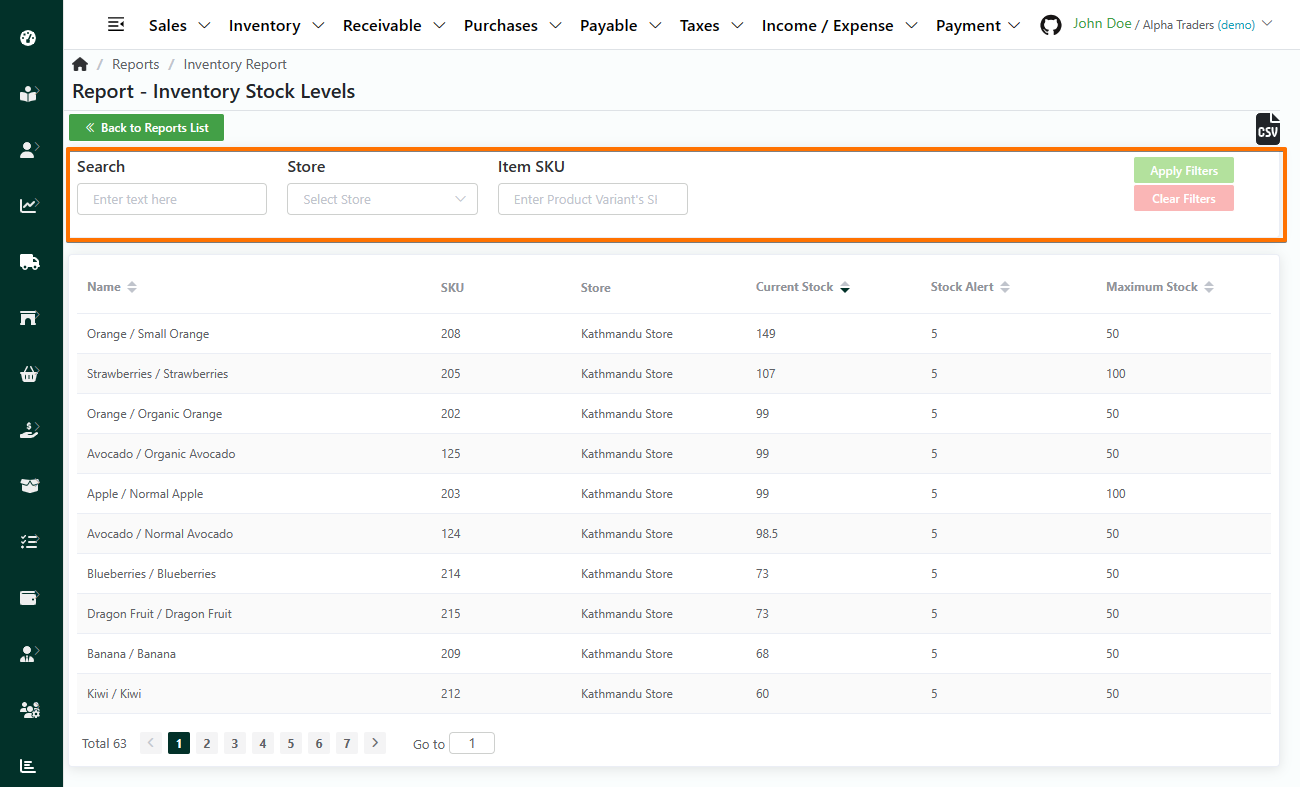
- Log in to your MeroERP account.
- On the left navigation menu, browse to Reports. This will redirect you to Reports list page.
- In the Inventory panel, select Stock Alert. This will redirect you to Inventory Stock list page.
- Apply the required filters. The filters available are
- Name
- Store
- Item SKU
- Click on Apply filters.
Inventory Valuation
List Inventory Valuation
Direct Link: https://app.meroerp.com/reports/inventory-valuation
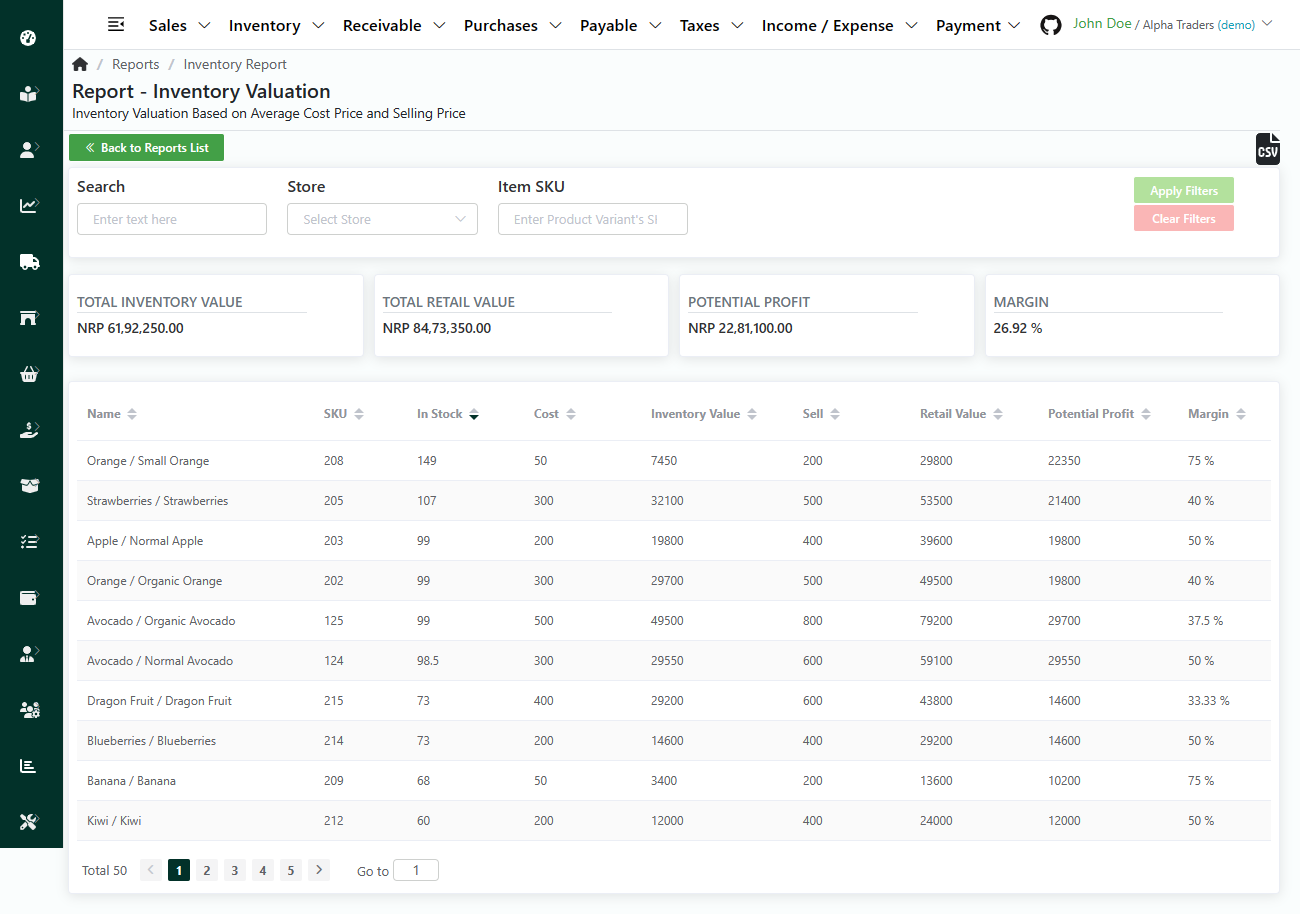
- Log in to your MeroERP account.
- On the left navigation menu, browse to Reports. This will redirect you to Reports list page.
- In the Inventory panel, select Inventory Valuation. This will redirect you to Inventory Valuations list page.
- The page have the following informations:
- Total Inventory Value
- Total Retail Value
- Potential Profit
- Margin
- Each Product Variant have the following informations:
- Name
- SKU
- In Stock
- Cost Price
- Inventory Value
- Sell Price
- Retail Value
- Potential Profit
- Margin
- Created At
Search Inventory Valuation
Direct Link: https://app.meroerp.com/reports/inventory-valuation
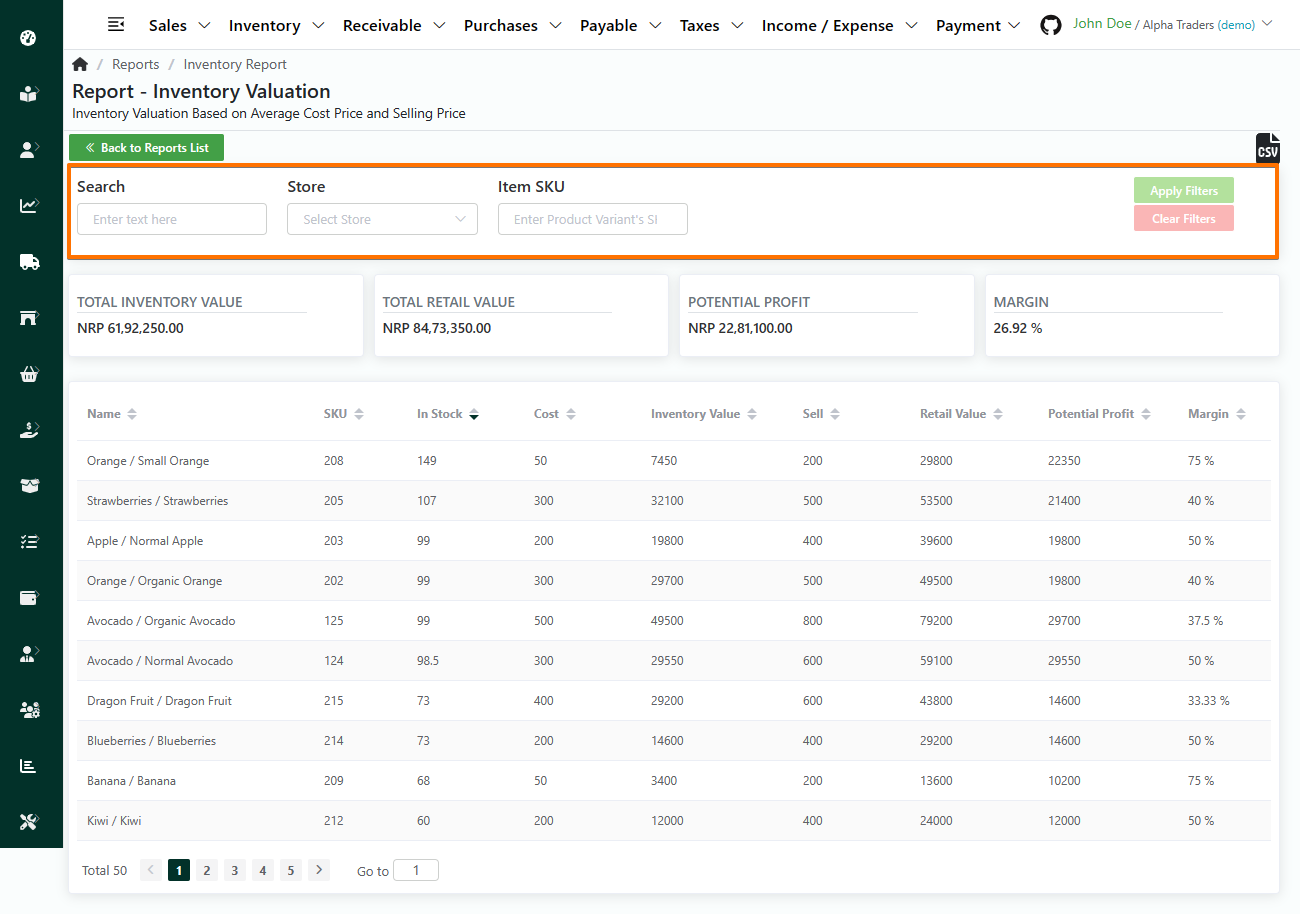
- Log in to your MeroERP account.
- On the left navigation menu, browse to Reports. This will redirect you to Reports list page.
- In the Inventory panel, select Inventory. This will redirect you to Inventory valuation list page.
- Apply the required filters. The filters available are
- Name
- Store
- Item SKU
- Click on Apply filters.
Income/ Expense Report
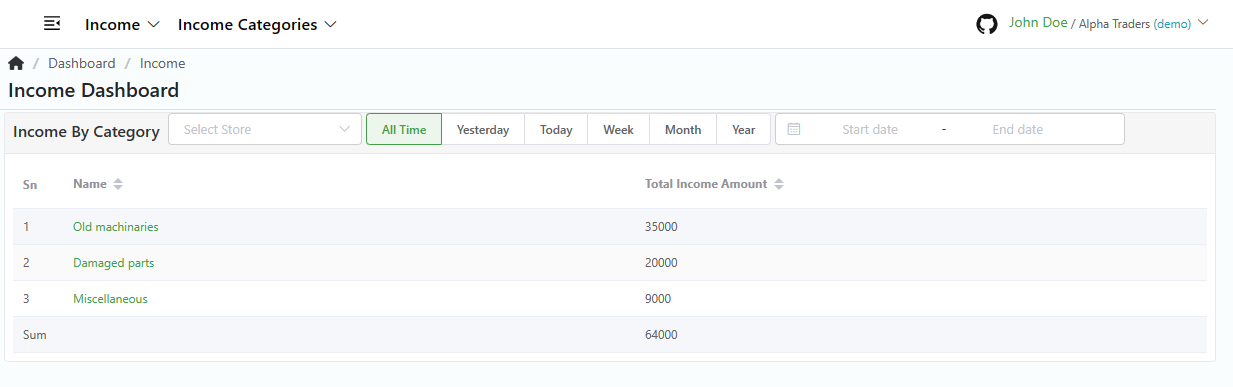
Income
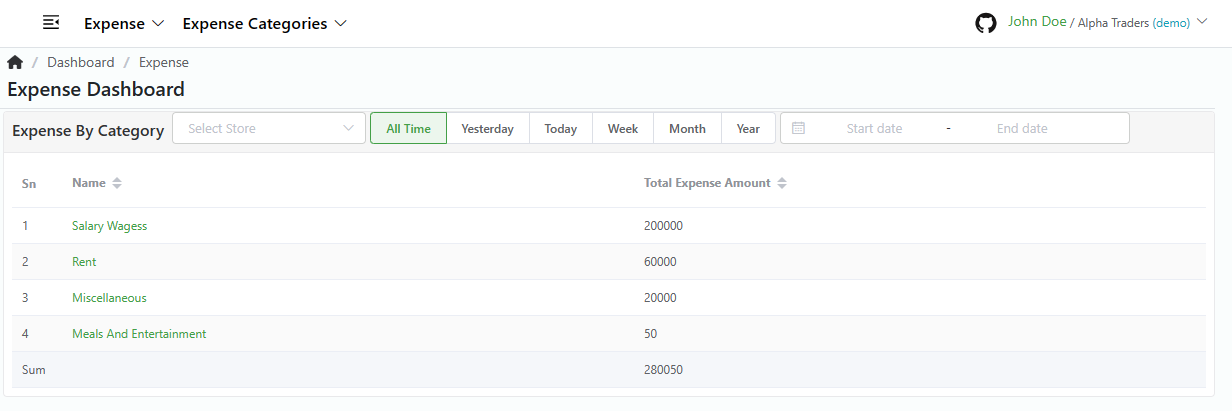
Expense
Receivable Report
Incomes Due
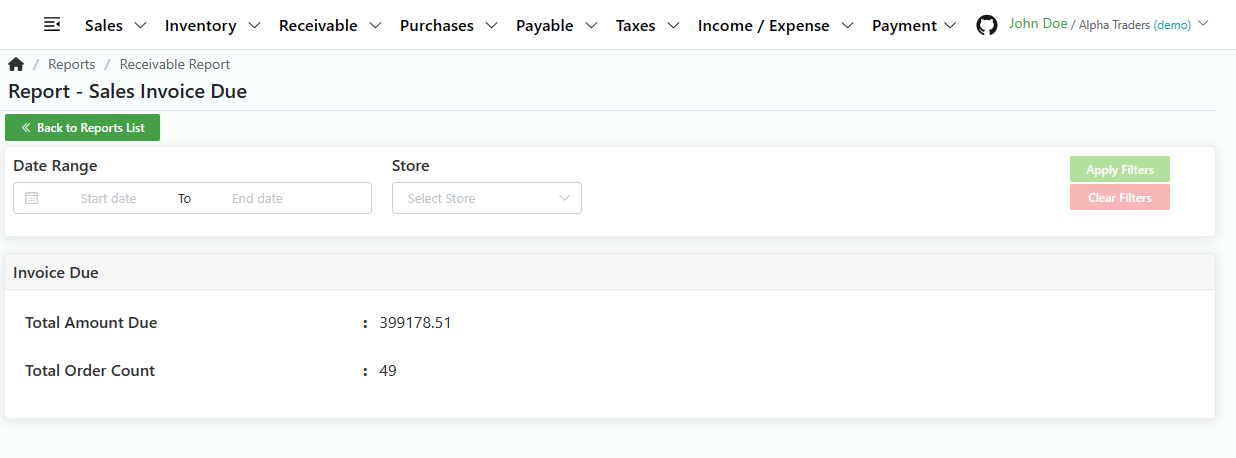
List Invoice Due
Direct Link: https://app.meroerp.com/reports/receivable/invoice-due
- Log in to your MeroERP account.
- On the left navigation menu, browse to Reports. This will redirect you to Reports list page.
- In the Receivable panel, select Invoices Due. This will redirect you to Invoice Due list page.
- The page have the following informations:
- Total Amount Due
- Total Order Count
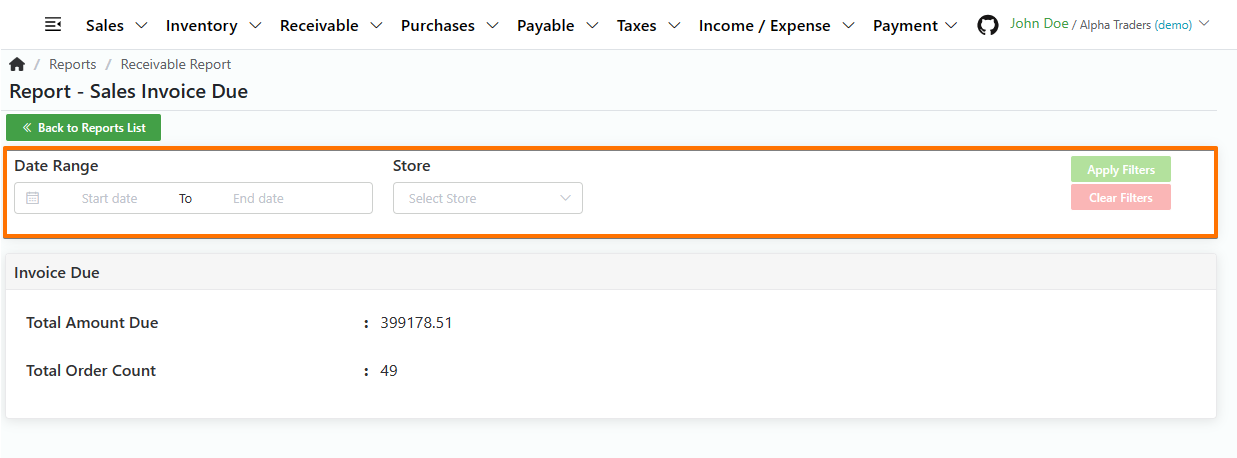
Search Invoice Due
Direct Link: https://app.meroerp.com/reports/receivable/invoice-due
- Log in to your MeroERP account.
- On the left navigation menu, browse to Reports. This will redirect you to Reports list page.
- In the Receivable panel, select Invoices Due. This will redirect you to Invoice Due list page.
- Apply the required filters. The filters available are
- Date Range
- Store
- Click on Apply filters.
Purchase Return Due
List Purchase Return Due
Direct Link: https://app.meroerp.com/reports/receivable/purchase-return-due
- Log in to your MeroERP account.
- On the left navigation menu, browse to Reports. This will redirect you to Reports list page.
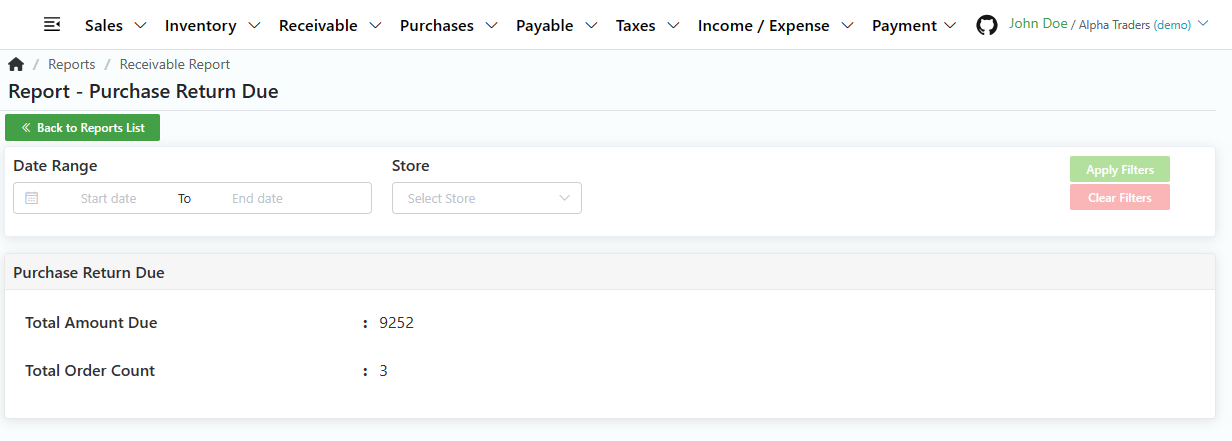
- In the Receivable panel, select Purchase Return Due. This will redirect you to Purchase Return Due list page.
- The page have the following informations:
- Total Amount Due
- Total Order Count
Search Purchase Return Due
Direct Link: https://app.meroerp.com/reports/receivable/purchase-return-due
- Log in to your MeroERP account.
- On the left navigation menu, browse to Reports. This will redirect you to Reports list page.
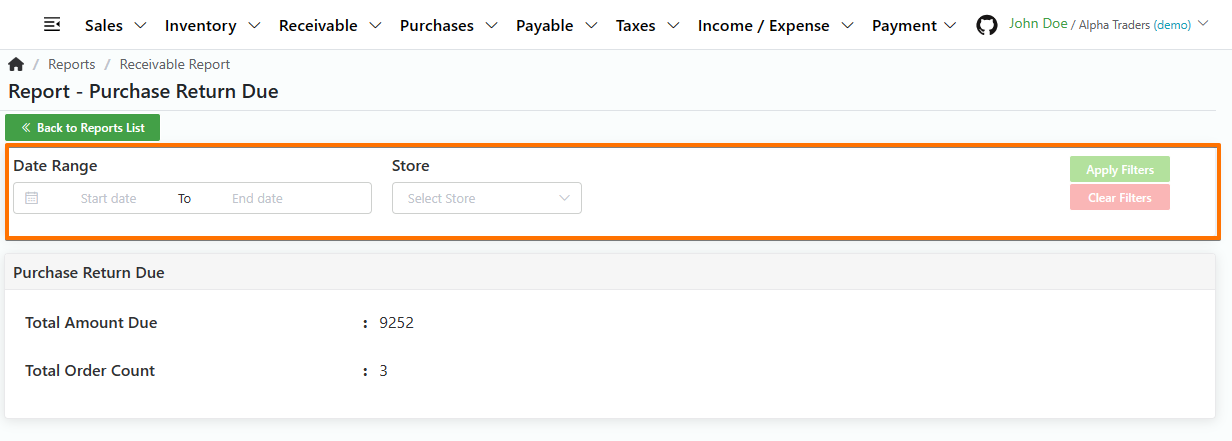
- In the Receivable panel, select Purchase Return Due. This will redirect you to Purchase Return Due list page.
- Apply the required filters. The filters available are
- Date Range
- Store
- Click on Apply filters.
Payables Report
Purchase Due
List Purchase Due
Direct Link: https://app.meroerp.com/reports/payable/purchase-order-due
- Log in to your MeroERP account.
- On the left navigation menu, browse to Reports. This will redirect you to Reports list page.
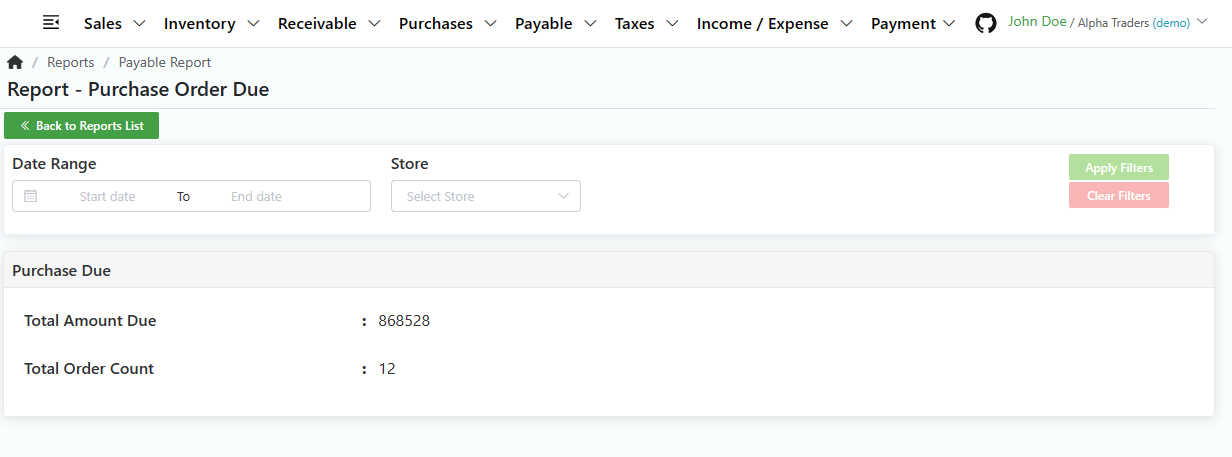
- In the Payables panel, select Purchase Due. This will redirect you to Purchase Due list page.
- The page have the following informations:
- Total Amount Due
- Total Order Count
Search Purchase Due
Direct Link: https://app.meroerp.com/reports/payable/purchase-order-due
- Log in to your MeroERP account.
- On the left navigation menu, browse to Reports. This will redirect you to Reports list page.
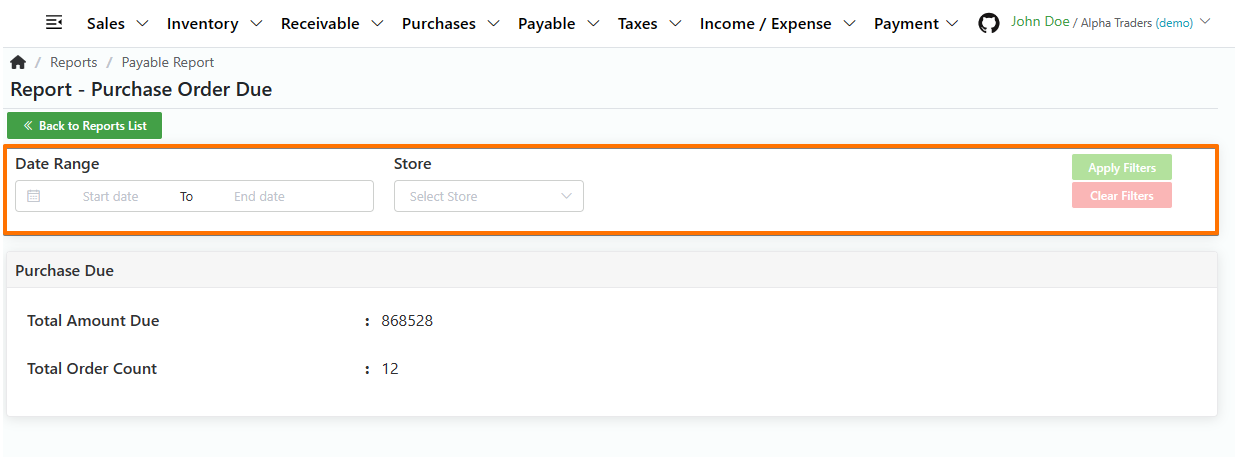
- In the Payables panel, select Purchase Due. This will redirect you to Purchase Due list page.
- Apply the required filters. The filters available are
- Date Range
- Store
- Click on Apply filters.
Invoice Return Due
List Invoice Return Due
Direct Link: https://app.meroerp.com/reports/payable/invoice-returns-due
- Log in to your MeroERP account.
- On the left navigation menu, browse to Reports. This will redirect you to Reports list page.
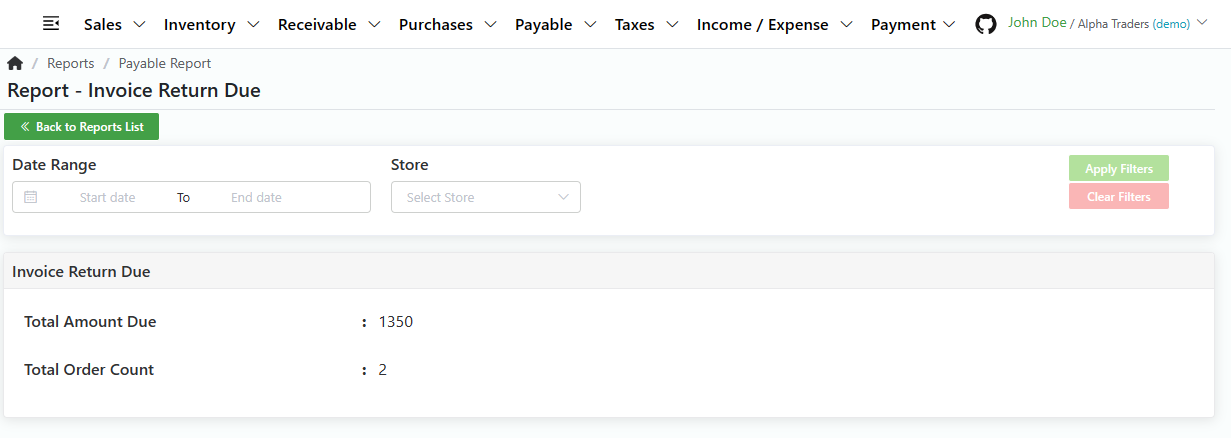
- In the Payables panel, select Invoice Return Due. This will redirect you to Invoice Return Due list page.
- The page have the following informations:
- Total Amount Due
- Total Order Count
Search Invoice Return Due
Direct Link: https://app.meroerp.com/reports/payable/invoice-returns-due
- Log in to your MeroERP account.
- On the left navigation menu, browse to Reports. This will redirect you to Reports list page.
- In the Payables panel, select Invoice Return Due. This will redirect you to Invoice Return Due list page.
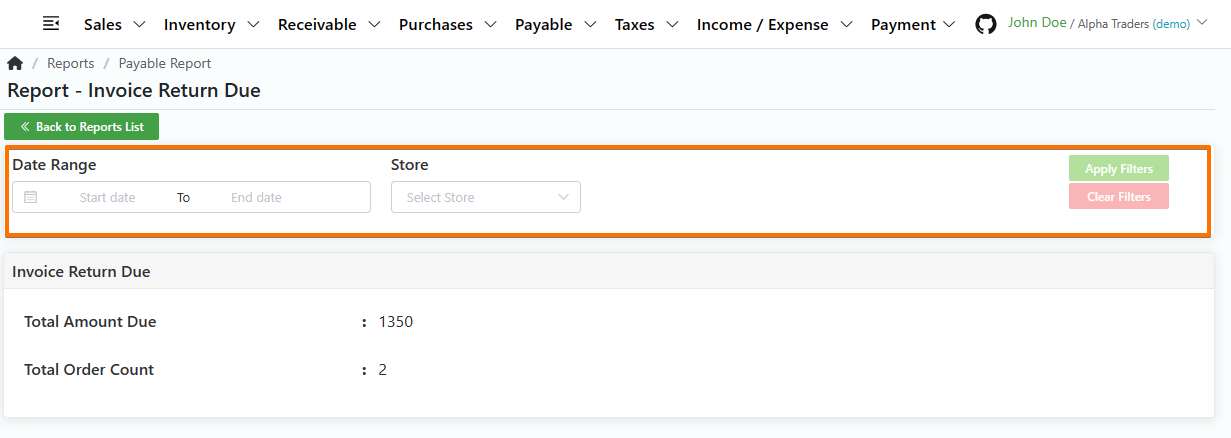
- Apply the required filters. The filters available are
- Date Range
- Store
- Click on Apply filters.
Taxes Report
Invoice Sales Tax
List Invoice Sales Tax
Direct Link: https://app.meroerp.com/reports/invoice-sales-taxes
- Log in to your MeroERP account.
- On the left navigation menu, browse to Reports. This will redirect you to Reports list page.
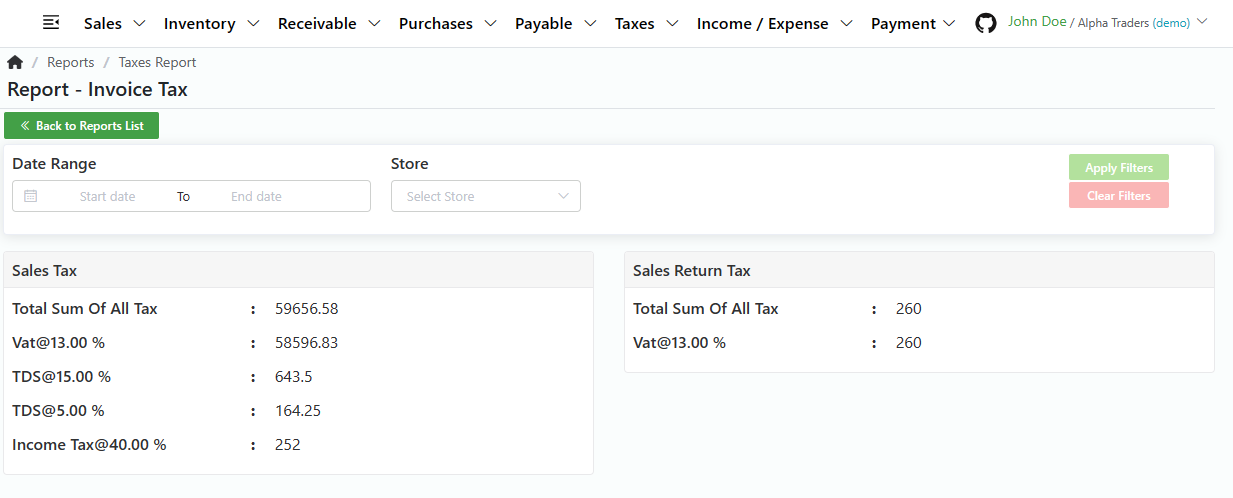
- In the Taxes panel, select Invoice Sales Taxes. This will redirect you to Invoice Sales Taxes list page.
- The page have the following informations:
- Sales Tax
- Total Sum of All Tax
- Other Tax types added
- Sales Return Tax
- Total Sum of All Tax
- Other Tax types added
- Sales Tax
Search Invoice Sales Tax
Direct Link: https://app.meroerp.com/reports/invoice-sales-taxes
- Log in to your MeroERP account.
- On the left navigation menu, browse to Reports. This will redirect you to Reports list page.
- In the Taxes panel, select Invoice Sales Taxes. This will redirect you to Invoice Sales Taxes list page.
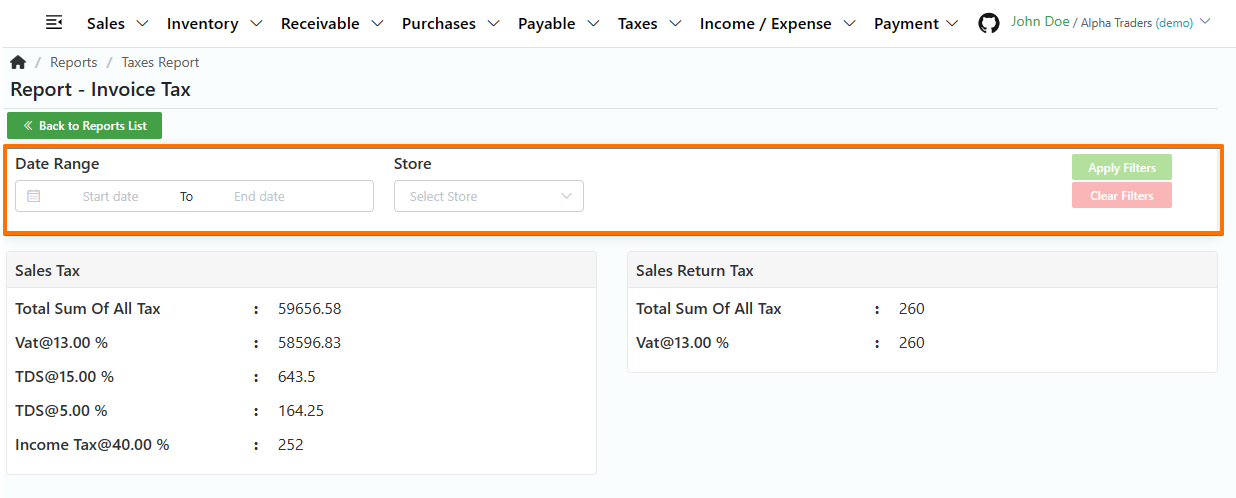
- Apply the required filters. The filters available are
- Date Range
- Store
- Click on Apply filters.
Purchase Tax
List Purchase Tax
Direct Link: https://app.meroerp.com/reports/purchase-orders-taxes
- Log in to your MeroERP account.
- On the left navigation menu, browse to Reports. This will redirect you to Reports list page.
- In the Taxes panel, select Invoice Sales Taxes. This will redirect you to Invoice Sales Taxes list page.
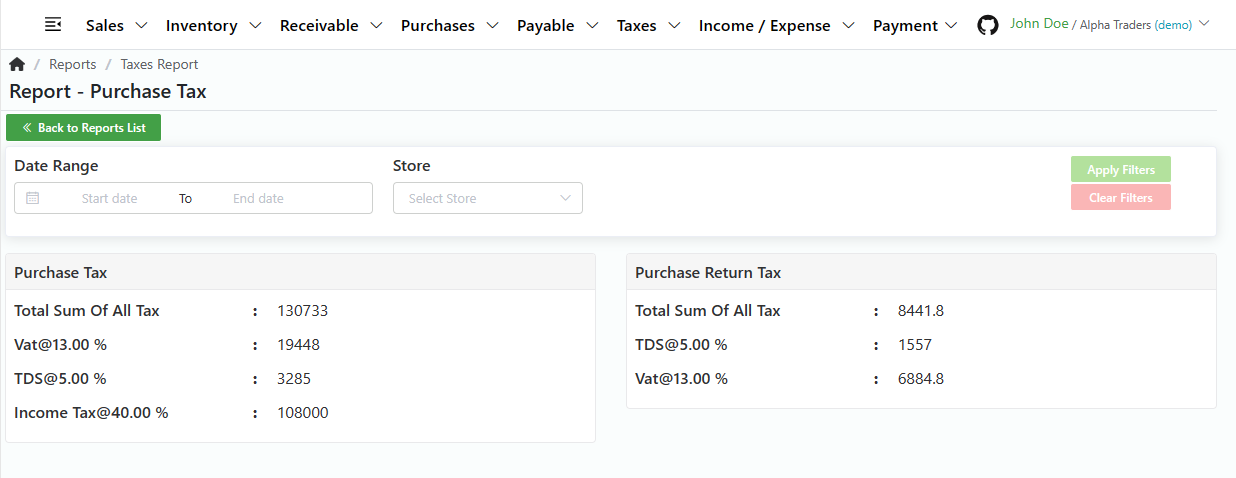
- The page have the following informations:
- Sales Tax
- Total Sum of All Tax
- Other Tax types added
- Sales Return Tax
- Total Sum of All Tax
- Other Tax types added
- Sales Tax
Search Purchase Tax
Direct Link: https://app.meroerp.com/reports/purchase-orders-taxes
- Log in to your MeroERP account.
- On the left navigation menu, browse to Reports. This will redirect you to Reports list page.
- In the Taxes panel, select Purchase Tax. This will redirect you to Purchase Tax list page.
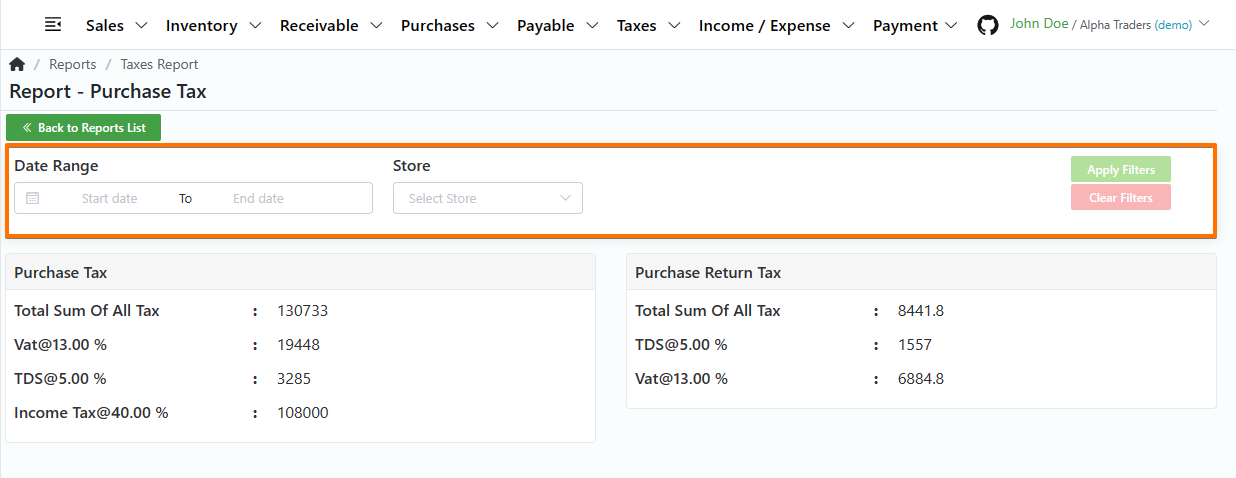
- Apply the required filters. The filters available are
- Date Range
- Store
- Click on Apply filters.