Expense module
- Expense Category
- Expenses
- Expense Dashboard
Expense Category
Different categories of Expense
List Expenses Categories
Direct Link: https://app.meroerp.com/expenses/categories
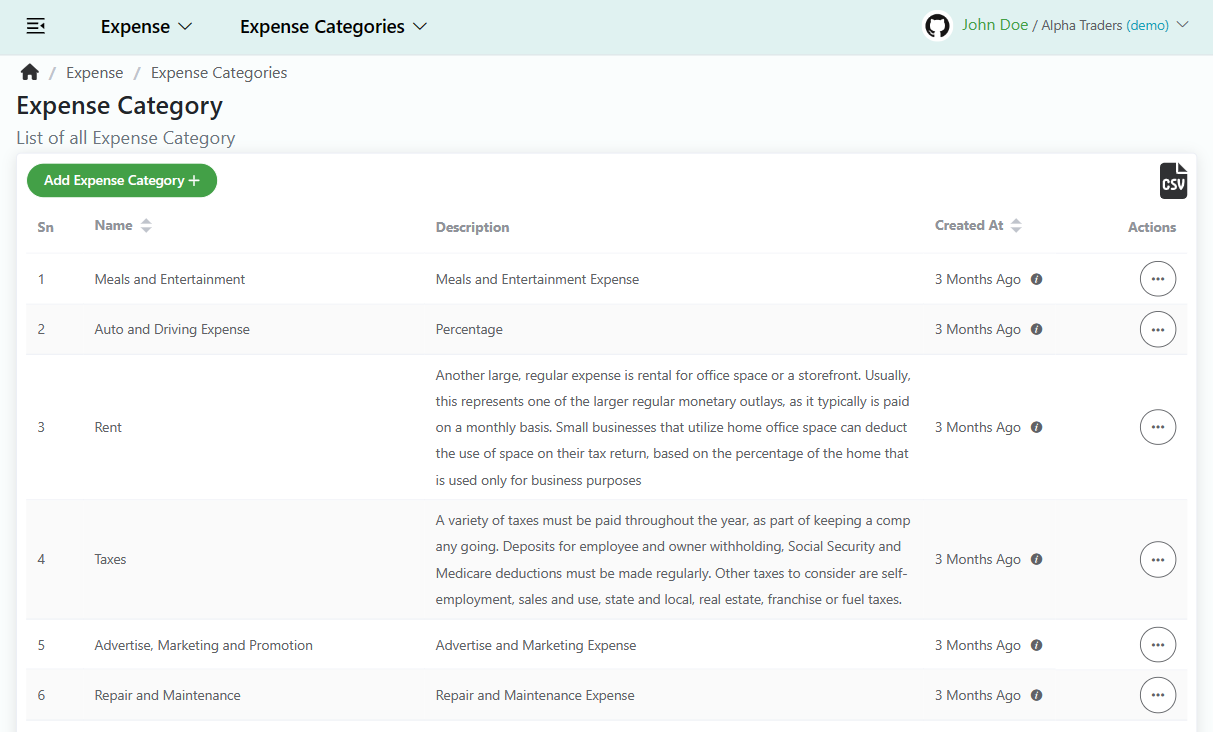
- Log in to your MeroERP account.
- On the left navigation menu, browse to Expense > Manage Expense Categories. This will take you to Expense categories list page.
Add Expense Category
Direct Link: https://app.meroerp.com/expenses/categories
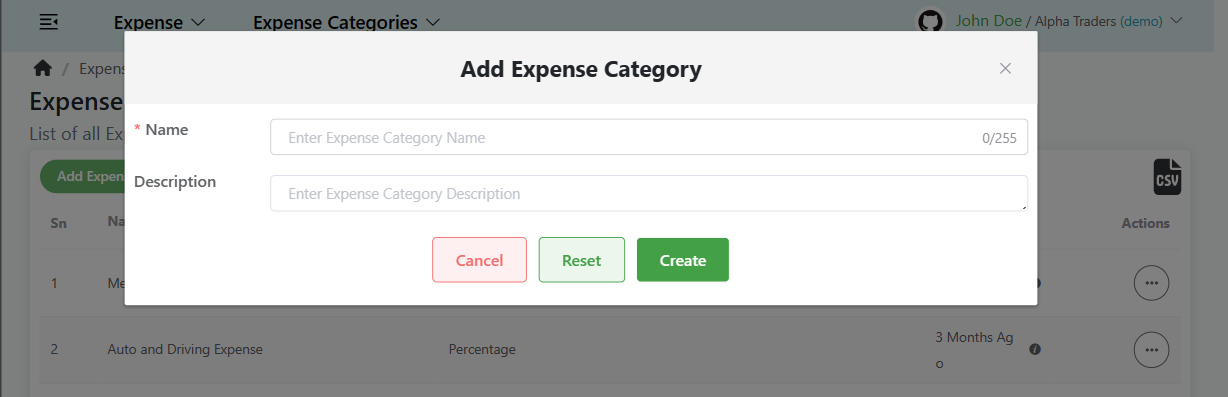
Log in to your MeroERP account.
On the left navigation menu, browse to Expense > Manage Expense Categories. This will take you to Expense categories list page.
Click on Add Expense Category +.
Fill necessary details.
- *Name
- Description
Click on Create.
Edit Expense Category
Direct Link: https://app.meroerp.com/expenses/categories
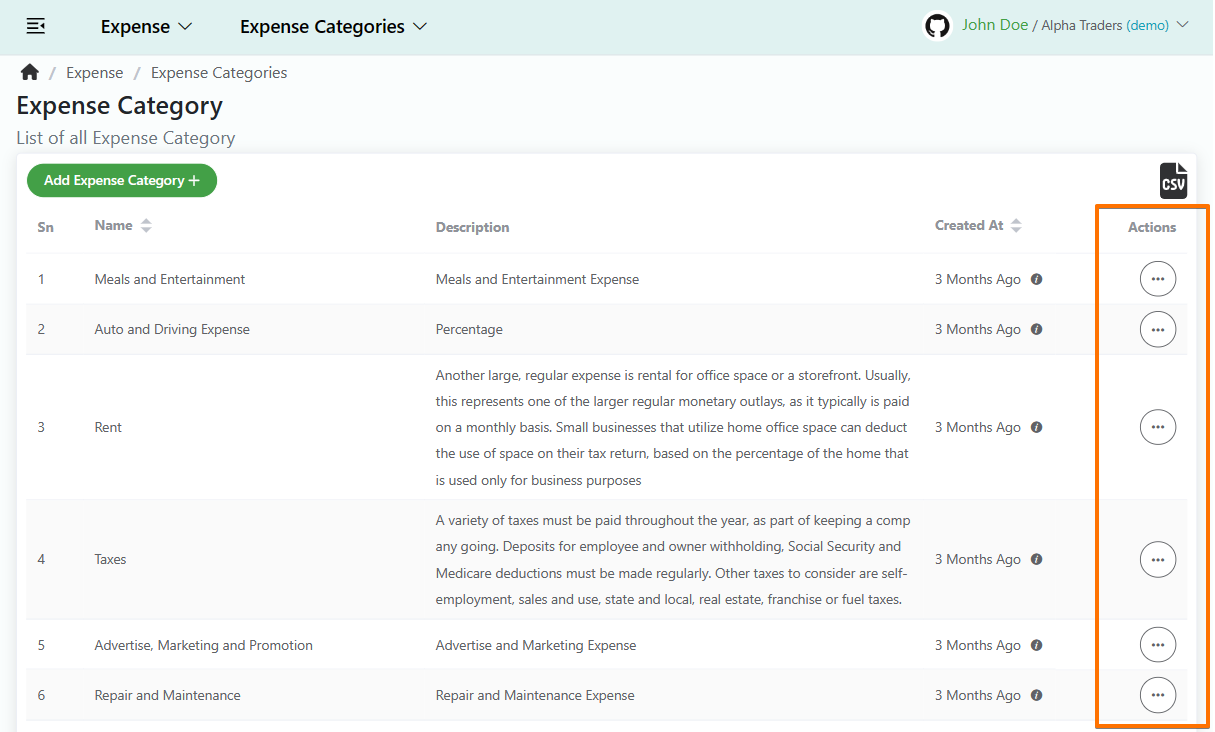
- Log in to your MeroERP account.
- On the left navigation menu, browse to Expense > Manage Expense Categories. This will take you to Expense categories list page.
- Find the expense category you would like to edit. Click on that category Action panel then select on Update.
- Update necessary details.
- Click on Update.
Delete Expense Category
Direct Link: https://app.meroerp.com/expenses/categories
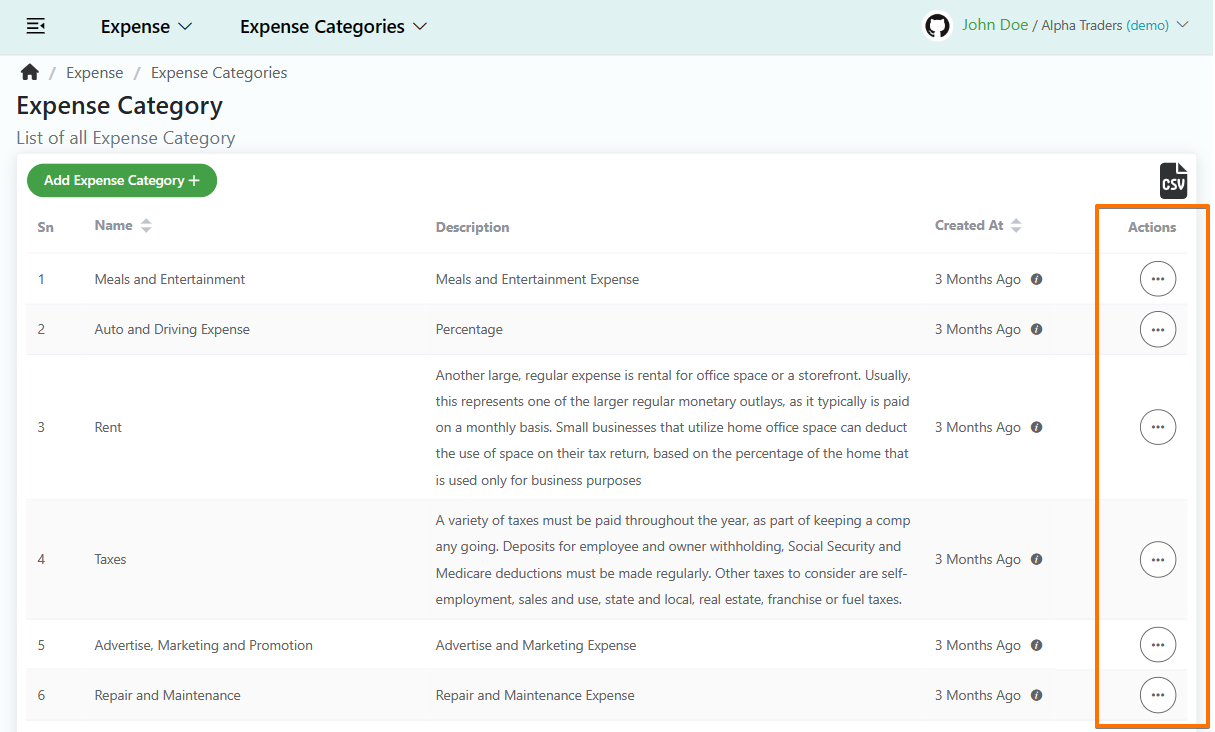
- Log in to your MeroERP account.
- On the left navigation menu, browse to Expense > Manage Expense Categories. This will take you to Expense categories list page.
- Find the expense category you would like to delete. Click on that category Action panel then select on Delete.
- Click on Ok.
Note: Used Expense Category for adding Expense can't be deleted.
Expenses
Different Expense based on different Expense categories.
List Expenses
Direct Link: https://app.meroerp.com/expenses/expenses
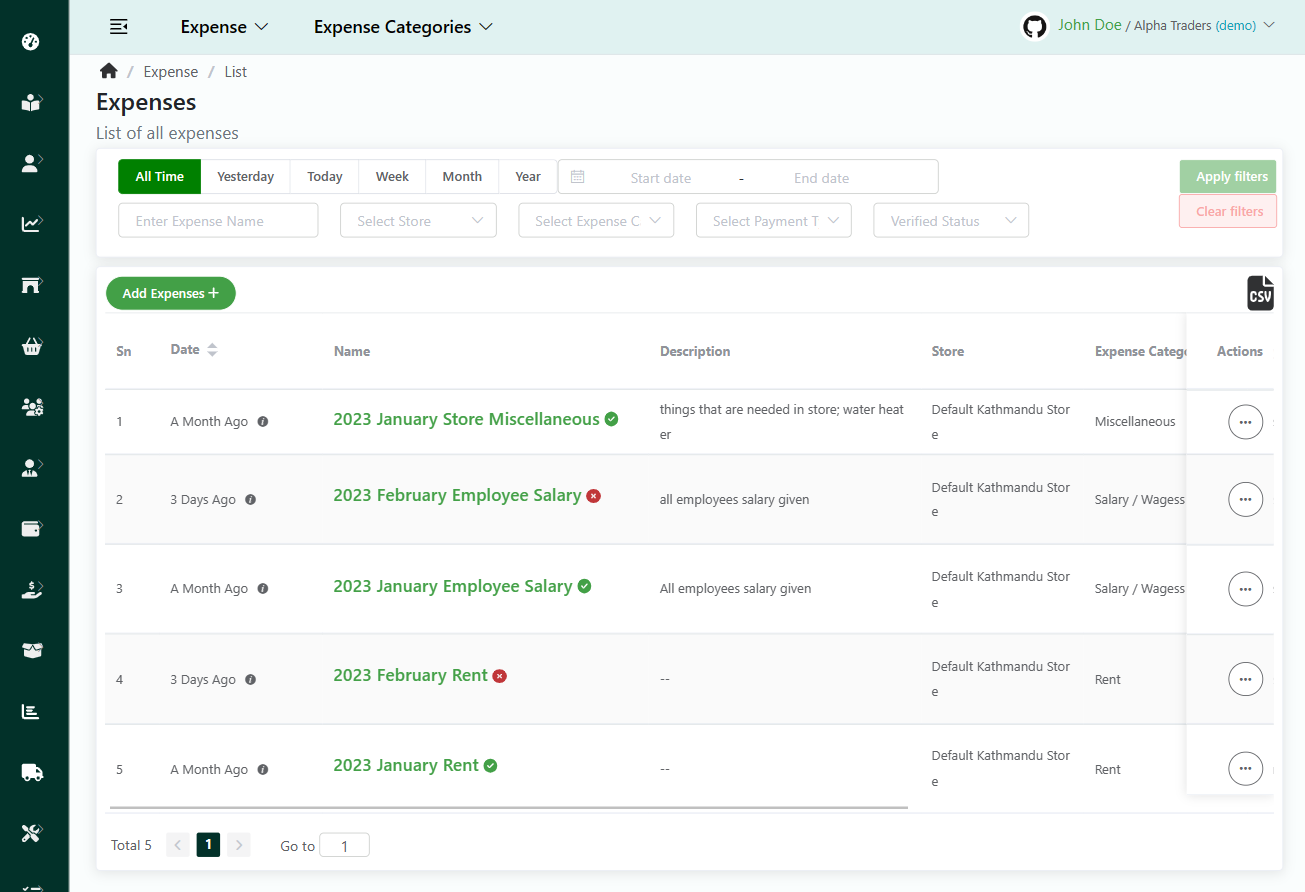
- Log in to your MeroERP account.
- On the left navigation menu, browse to Expense > Manage Expenses. This will take you to Expenses list page.
Add Expense
Direct Link: https://app.meroerp.com/expenses/expenses
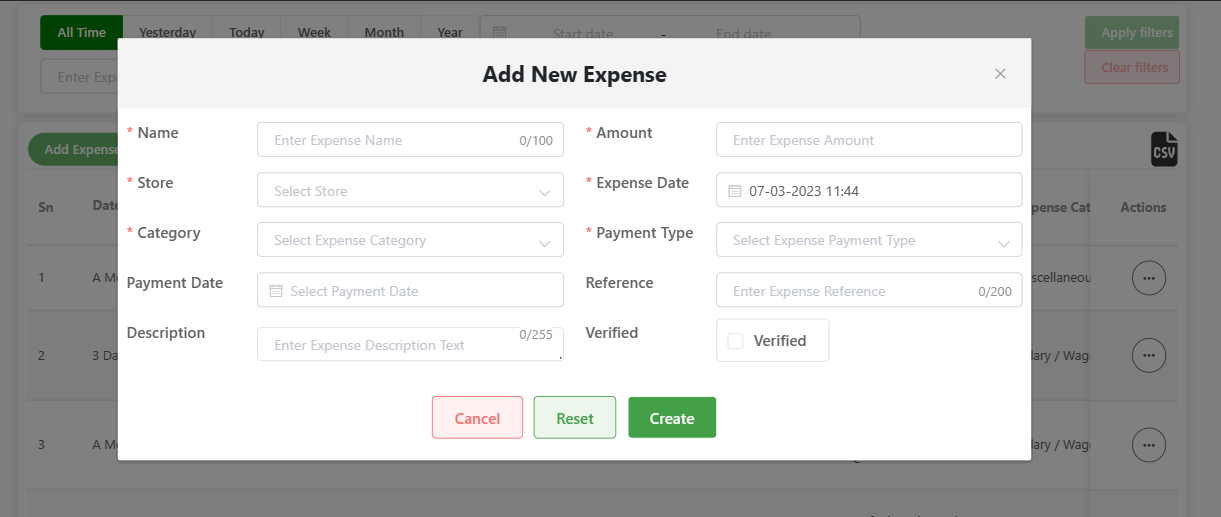
- Log in to your MeroERP account.
- On the left navigation menu, browse to Expense > Manage Expenses. This will take you to Expenses list page.
- Click on Add Expense+. Add New Expense** pop up page will appear.
- Fill in the necessary details.
- *Name
- *Amount
- *Store
- *Expense Date
- *Category
- *Payment Type
- Payment Date
- Reference
- Description
- Verified checkbox: Check on Verified if the payment is verified.
- Click on Create.
View Expense
Direct Link: https://app.meroerp.com/expenses/expenses
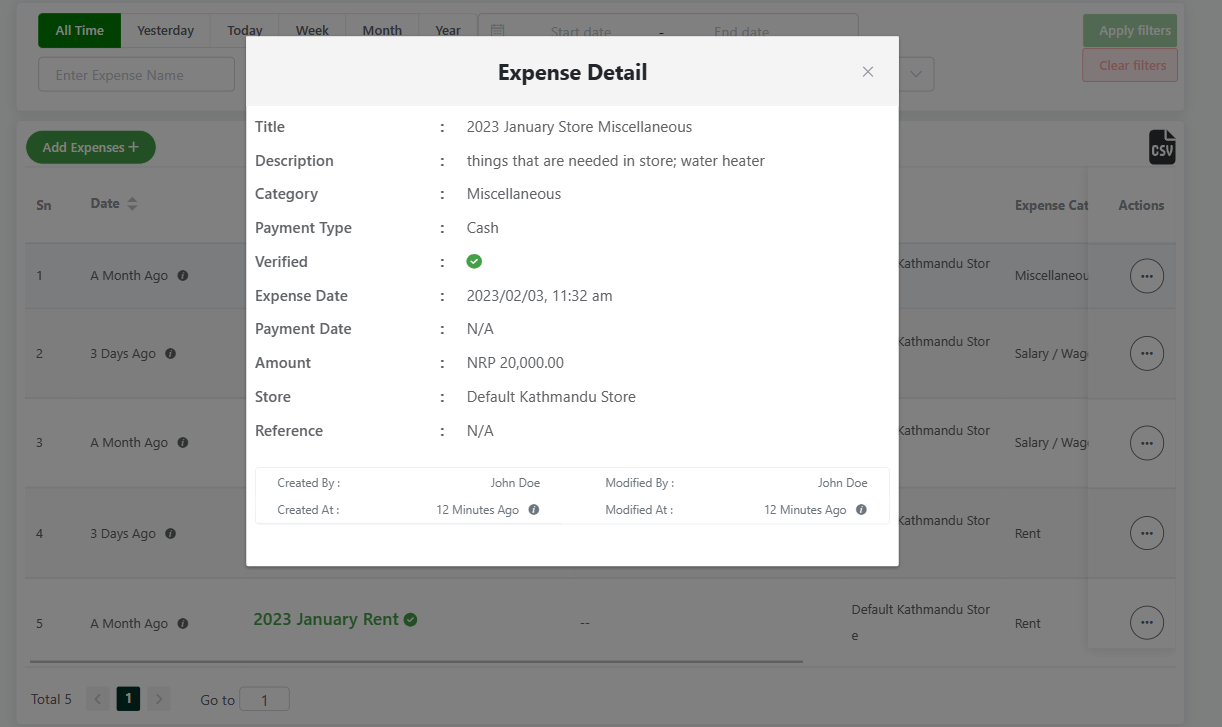
- Log in to your MeroERP account.
- On the left navigation menu, browse to Expense > Manage Expenses. This will take you to Expenses list page.
- Click the Income you would like to view.
Edit Expense
Direct Link: https://app.meroerp.com/expenses/expenses
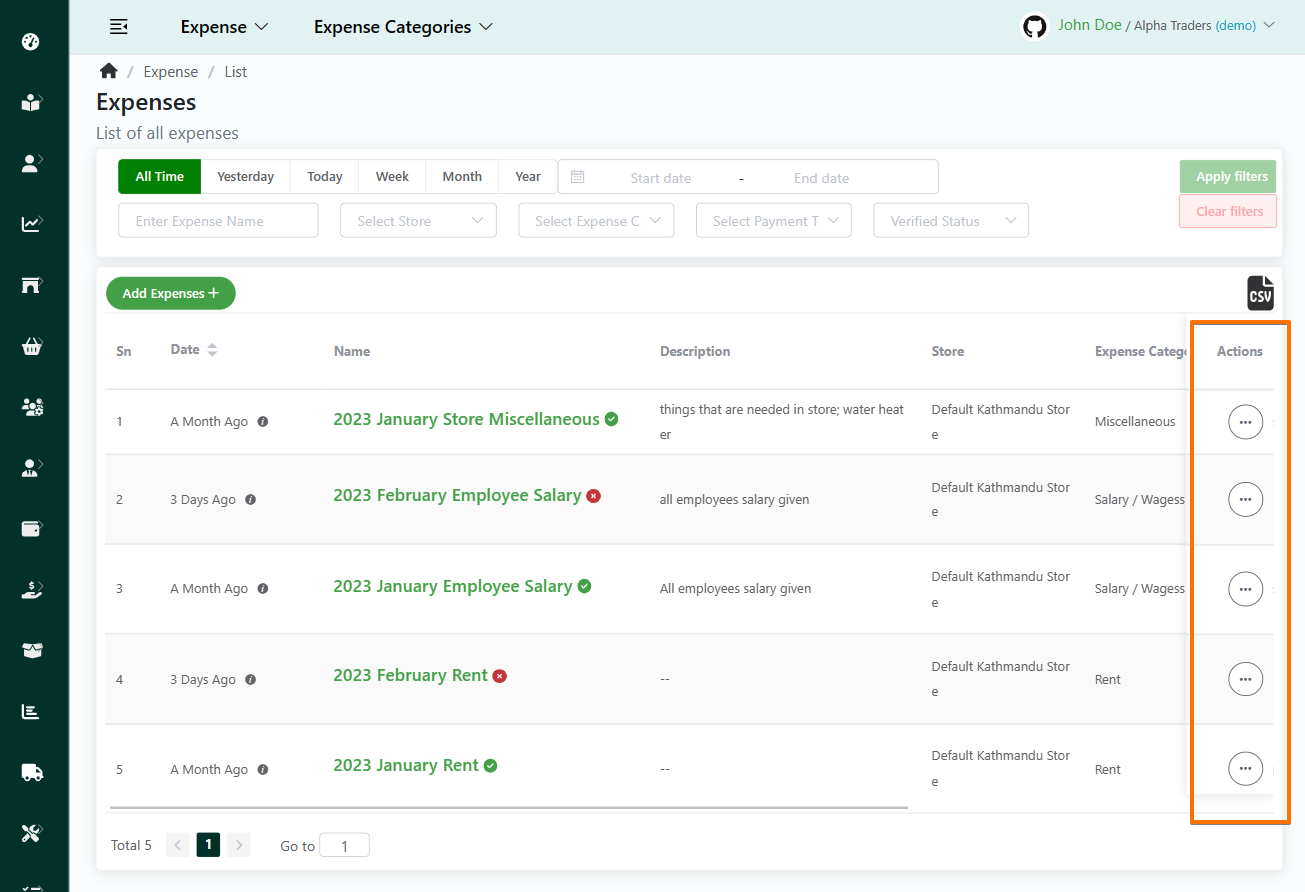
- Log in to your MeroERP account.
- On the left navigation menu, browse to Expense > Manage Expenses. This will take you to Expenses list page.
- Find the income you would like to edit. Click on that income Action panel then select on Edit.
- Update necessary details.
- Click on Update.
Search Expense
Direct Link: https://app.meroerp.com/expenses/expenses
Log in to your MeroERP account.
On the left navigation menu, browse to Expense > Manage Expenses. This will take you to Expenses list page.
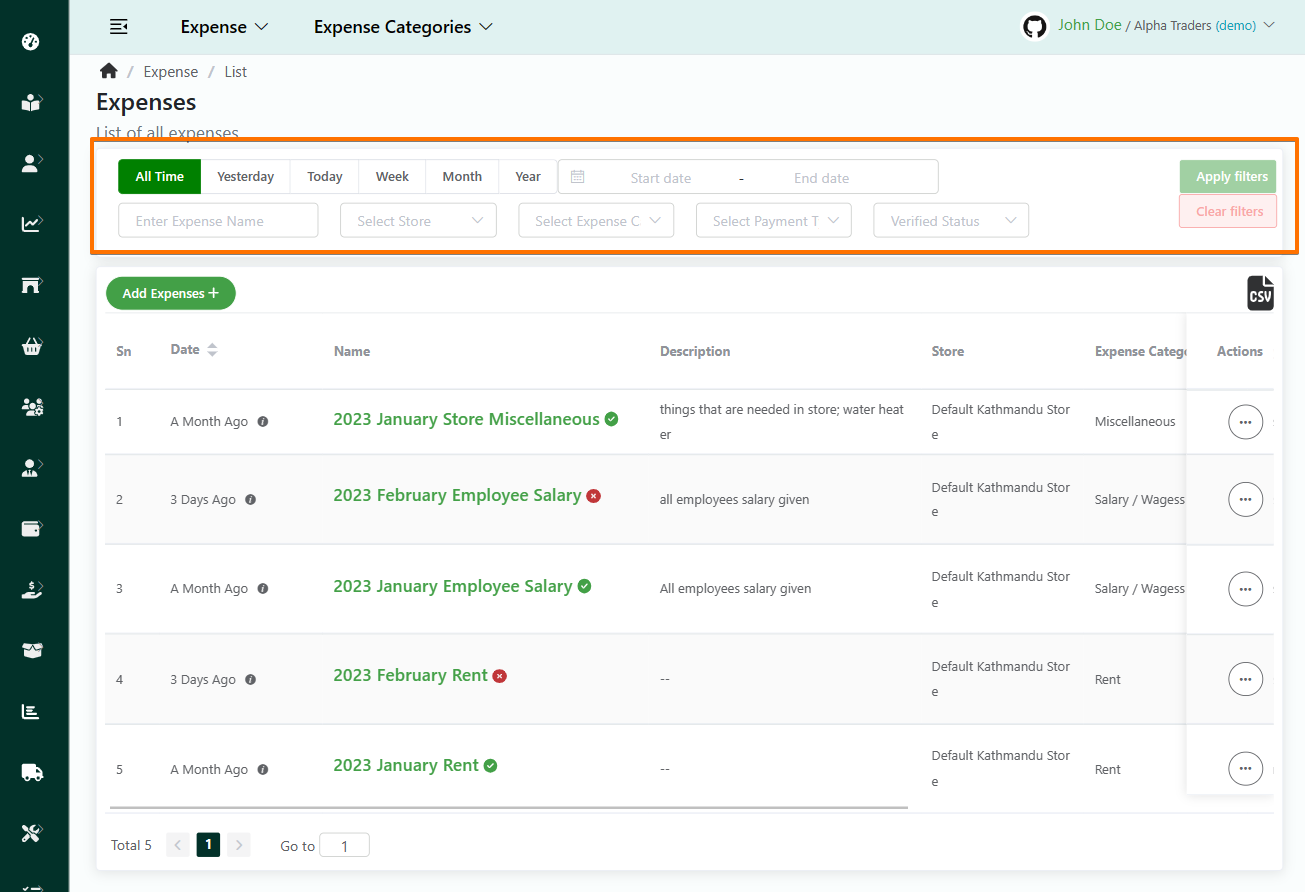
Apply the required filters. The available filters are
- Predefined / Manual date
- Expense Name
- Store
- Expense Category
- Payment Type
- Expense Verified Status
Click on Apply filters.
Search for the expense from the results and select the expense that matches your keywords.
Delete Expense
Direct Link: https://app.meroerp.com/expenses/expenses
- Log in to your MeroERP account.
- On the left navigation menu, browse to Expense > Manage Expenses. This will take you to Expenses list page.
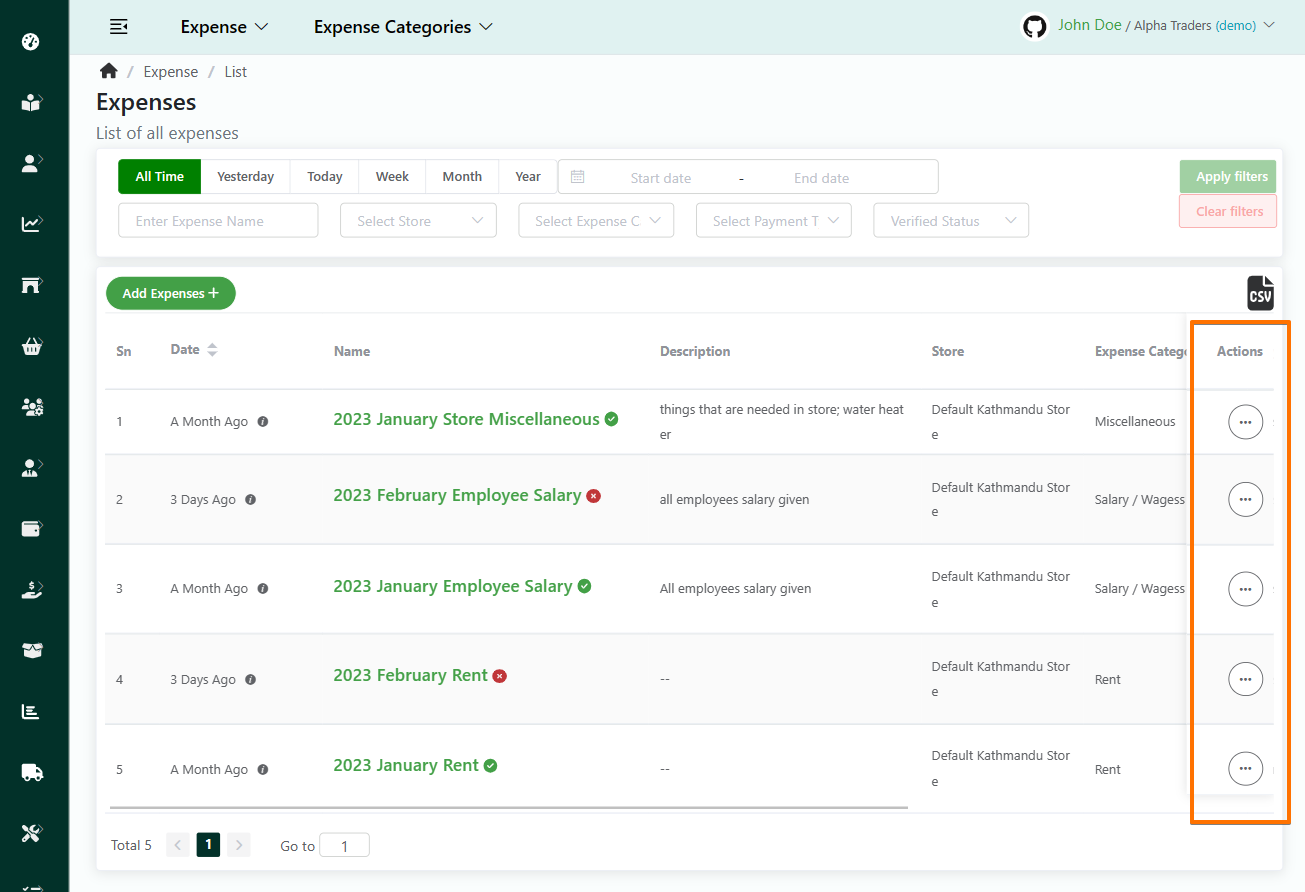
- Find the income you would like to delete. Click on that income Action panel then select on Delete.
- Click on Ok.
Note: Verified Incomes can't be deleted.
Expense Dashboard
View Expense Dashboard
Direct Link: https://app.meroerp.com/expenses/dashboard
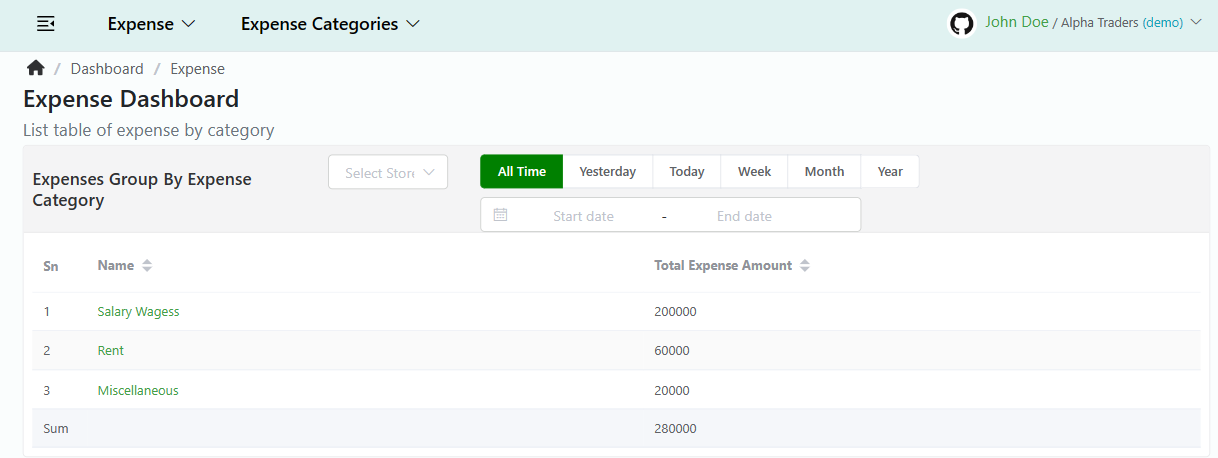
- Log in to your MeroERP account.
- On the left navigation menu, browse to Expense > Dashboard. This will take you to Expense Dashboard page.
Search Expense Dashboard
Direct Link: https://app.meroerp.com/expenses/dashboard
- Log in to your MeroERP account.
- On the left navigation menu, browse to Expense > Dashboard. This will take you to Expense Dashboard page.
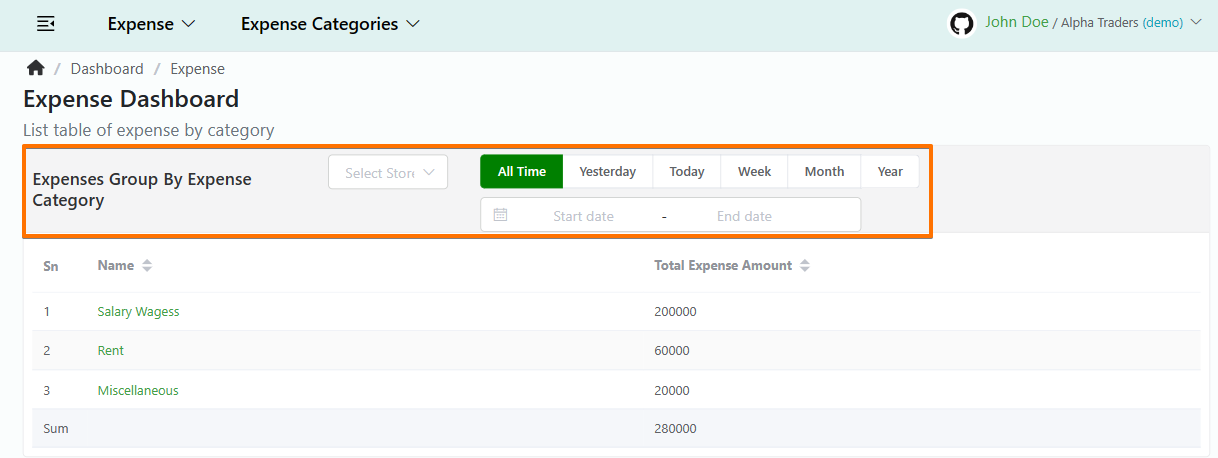
- Apply the filters you would like to use. Available filters are
- Store
- Predefined/ Manual date